
Open the settings window with the Settings button in the title bar of the main window, or with Tools → Settings. It has five tabs, and a sixth one, Live API, when your licence includes that feature:
| Tab | What you set there |
|---|---|
| Reports | The e-mail account used to send reports, and the club name, location and logo printed on the reports |
| Cardio zones | The heart-rate zones and their colours |
| Training | What each participant box shows, belt-contact and antenna indicators, Drop-in options, the calorie calculation |
| Devices | Which kinds of straps you use, the number of ANT+ receivers, the Bluetooth limit, sleep blocking |
| Live API | Showing the training on other screens in your network: the switch, the port, the access key (Live API and the browser live view). The tab appears only with a licence that includes the feature |
| Application layout | Language, units, theme, accent colour, look of the participant boxes |
Click Save to keep your changes, or Cancel to leave without saving. If you changed something and click Cancel, the program asks Cancel changes? before it discards them.
Language, theme and accent colour are previewed immediately while you change them. If you leave with Cancel, they return to what they were. After Save, a message tells you that the color scheme change requires restarting the application — close and open Pulse Monitor again.
You can save all of these settings to a file and load them on another computer: File → Settings file → Save settings… / Load settings… (Saving and loading the settings).
5.1 Reports#
This tab prepares what your participants receive after a training. Do it once, before you send the first report.
5.1.1 Mail account settings#
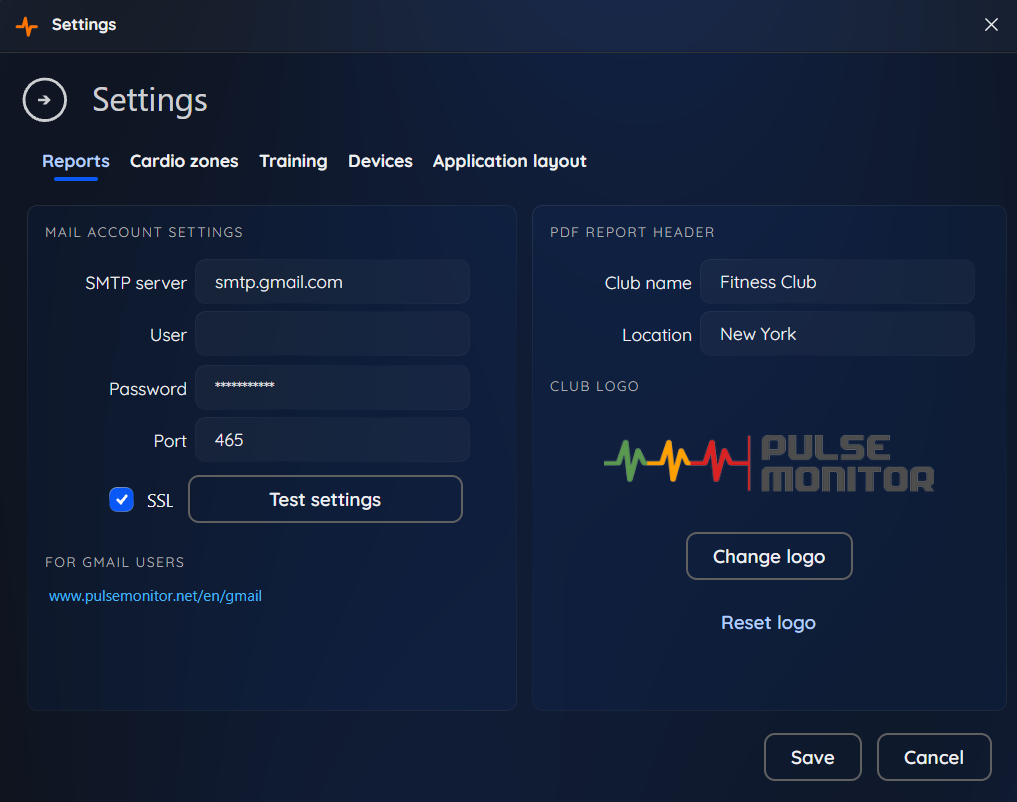
Reports are sent as e-mails with the PDF attached. To send them, Pulse Monitor needs access to an e-mail account that is allowed to send mail (an ordinary mailbox of your club will do).
| Field | What to enter |
|---|---|
| SMTP server | The address of your outgoing mail server, e.g. smtp.yourclub.com |
| User | Your mailbox login (usually the full e-mail address) |
| Password | The mailbox password. It is shown as dots |
| Port | Usually 587 (the default) |
| SSL | Leave it checked unless your provider tells you otherwise |
Click Test settings to check them. The program sends a test message and tells you Test message sent successfully, or I can not send a test message. Check the settings.
Gmail users: Google does not accept your normal password for programs like this. Under For Gmail users there is a link to a short guide on https://www.pulsemonitor.net/en/gmail that shows how to create an app password and which settings to use.
If you try to send a report before the account is configured, the program reminds you: To send reports, configure the e-mail account settings.
5.1.2 PDF report header#
The data printed at the top of every PDF report:
- Club name and Location — printed under the title of the report.
- Club logo — shown in the top-right corner. Click Change logo and select an image file (PNG, JPG or GIF). Keep it small: files above 1000 KB are refused. Click Reset logo to return to the standard Pulse Monitor logo.
A logo with a transparent or white background and a width-to-height ratio of about 2:1 looks best.
5.2 Cardio zones#
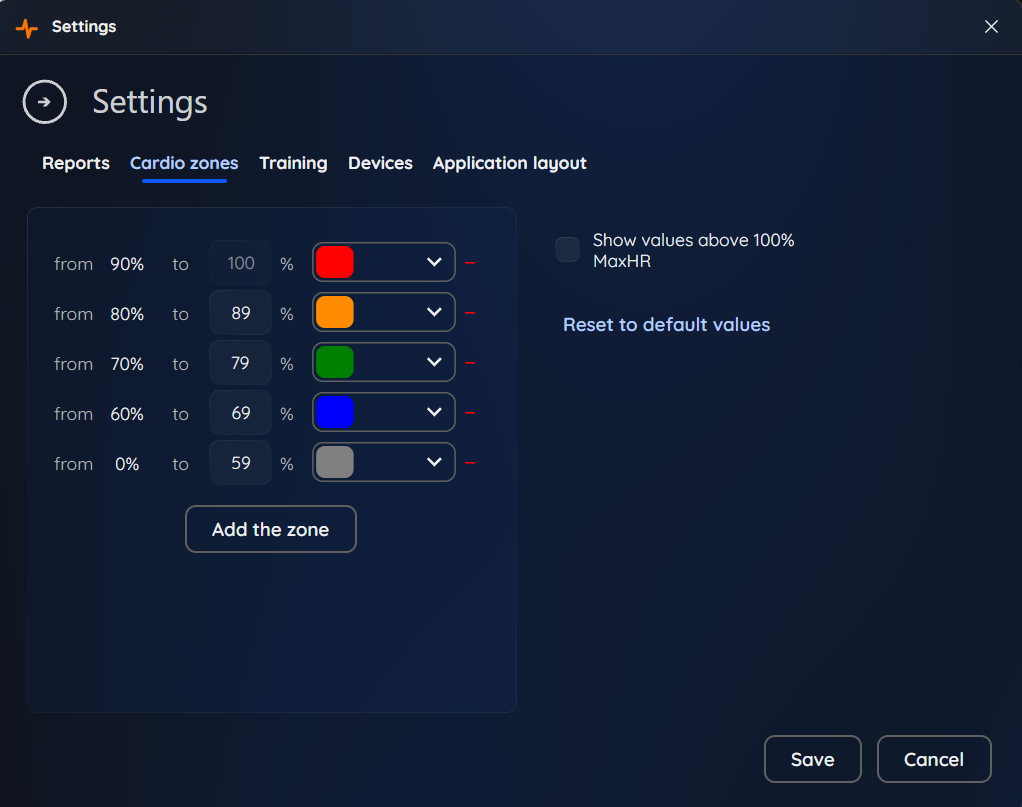
Heart-rate zones show how hard a participant is working, as a percentage of their personal Max HR. Each zone has a colour, and the participant’s box on the live screen takes the colour of the zone they are in. Zones also drive the time in zones chart on every report.
5.2.1 The default zones#

| Zone | From | To | Colour | Typical meaning |
|---|---|---|---|---|
| 1 | 0 % | 59 % | Grey | Rest, very light activity |
| 2 | 60 % | 69 % | Blue | Warm-up, easy effort |
| 3 | 70 % | 79 % | Green | Moderate effort, aerobic endurance |
| 4 | 80 % | 89 % | Orange | Hard effort, high aerobic intensity |
| 5 | 90 % | 100 % | Red | Very hard effort, near maximum |
There is no single, universal division of heart rate zones. Depending on the training method, zones can have different boundaries - models with three, five or seven zones are all in use. Also, the same percentage of maximum heart rate does not translate into exactly the same level of effort in every person. The default zones in Pulse Monitor are a useful practical model, but the 70 %, 80 % and 90 % boundaries should not be treated as universal physiological thresholds.
5.2.2 Editing the zones#
Every row of the editor reads: from (a fixed number) to (a field you can edit) %, a colour and, on the last row, a red minus sign.
- Change the upper limit of a zone by typing a new number in its to field. The next zone’s from adjusts automatically, so there are never gaps or overlaps.
- Change the colour by clicking the colour box and choosing another one.
- Add a zone with Add the zone. The new zone is added on top of the existing ones. You can have at most eight zones.
- Delete a zone by clicking the red minus on the last row, then confirming Delete the zone? The upper limit of the last zone is always 100 %.
- Reset to default values restores the five standard zones.
Zones are applied to the whole program, including reports of earlier trainings: the time-in-zone chart of an old report is drawn with your current zones.
5.2.3 Show values above 100 % MaxHR#
By default a participant’s percentage never goes above 100 % on the screen, even if their heart rate exceeds their entered maximum. Check Show values above 100% MaxHR to see the real percentage, for example 104 %. Use it when your participants’ maximums are rather estimated than measured.
This option only changes the display on the live screen. The values that are recorded, and the reports, always keep the true heart rate.
5.3 Training#
This tab decides what a participant box shows during a class, how Drop-in sessions behave and how the calories are calculated.
5.3.1 Participant data presentation#
Every box has three data slots — left, centre (large) and right. You choose what each one shows:
| Slot | Default | Choices |
|---|---|---|
| Main presentation (centre) | % Of HR MAX | % Of HR MAX, Pulse, Calories |
| Additional presentation (left) | Pulse | % Of HR MAX, Pulse, Calories, or No presentation |
| Additional presentation (right) | Calories | % Of HR MAX, Pulse, Calories, or No presentation |
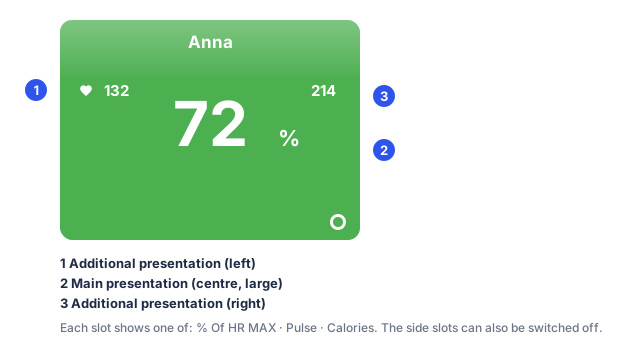
The centre slot always shows something. The two side slots can be switched off with No presentation, which gives a calmer, larger-looking screen.
For a wall display, the centre slot works best as the percentage of maximum: a trainer and a participant can both read it from a distance and it does not depend on age or fitness.
5.3.2 Monitor sensor contact#
When checked (the default), a check the belt warning appears on a participant’s box if their strap keeps sending exactly the same heart rate over many readings — a sign that it lost contact with the skin. See Reading the participant box.
5.3.3 Show antenna activity#
When checked (the default), every box shows a small icon of the technology of the participant’s strap (ANT+ or Bluetooth) which tells you whether the strap is currently heard. Uncheck it to hide those icons completely.
Each of these two options has an (i) icon with a short explanation.
Reset to default values (under the slots) restores this section to the defaults.
5.3.4 Drop-in sessions#
Allow unpaired ANT+ devices to join Drop-in sessions. When checked, any ANT+ strap the stick can hear appears on the Drop-in screen, even one that was never added to Pulse Monitor. When unchecked (the default), only the straps you registered in Devices appear. Bluetooth straps in Drop-in always have to be registered first. See Drop-in sessions.
5.3.5 Calorie calculation#
Choose how Pulse Monitor estimates the calories burned. Both options are based on the heart-rate formula of Keytel et al. (2005), which estimates the energy burned from heart rate, age, gender and weight (Appendix: formulas).
- Classic (Pulse Monitor) (default) — the Keytel formula adapted empirically. Its coefficients for women and men were tuned over many years of measurements in clubs, so that the result stays close to what personal devices, such as sports watches, report.
- Keytel (publication) — the formula exactly as published by its authors.
The published formula was derived for continuous exercise, and in a group class the heart rate often stays high during short rests, when the muscles burn little. For that reason it can give higher values than a sports watch, especially for heavier participants. The Classic option is meant to avoid this.
The choice applies to the trainings you record from then on. Trainings that are already saved keep the calories they were recorded with, so results recorded with different options are not directly comparable.
Whatever you choose, the calories are an estimate, and another device will usually show a somewhat different number, because it uses its own method.
5.4 Devices#
5.4.1 Antenna support#
Choose which technologies Pulse Monitor uses:
- ANT+ & Bluetooth (default) — both are used; straps of either kind work.
- ANT+ — only ANT+ straps. Bluetooth is not opened at all.
- Bluetooth — only Bluetooth straps. You do not need an ANT+ stick.
A switched-off technology is not opened and not checked, and the straps of that kind do not appear in the list when you choose a participant’s strap for a training.
If you only own ANT+ straps, choose ANT+. The program no longer looks for a Bluetooth adapter, and you will not see Bluetooth-related messages on computers without one.
5.4.2 Support for ANT+ receivers#
Under Connected receivers choose 1 or 2. Two USB sticks in the same computer cover a larger space or a larger room better: a strap heard by either stick is received. With two receivers every participant box shows two small ANT+ dots, one per stick. This option is hidden when you choose Bluetooth only.
5.4.3 Max Bluetooth straps#
How many Bluetooth straps may work at the same time. A typical Bluetooth adapter manages 5 to 7; the default is 7, and you can set any number from 1 to 10. If straps fail to connect during a class, lower the value. When you add participants to a training, Pulse Monitor does not allow you to exceed this number of Bluetooth straps and suggests you use ANT+ straps instead. The option is hidden when you choose ANT+ only.
This limit is not a restriction of Pulse Monitor. It comes from the hardware: the Bluetooth adapter in your computer and its driver can keep only a limited number of connections open at the same time.
Straps that support both ANT+ and Bluetooth are best paired as ANT+, so that they do not use up this limit (Finding straps with the scanner).
5.4.4 System settings#
Block sleep and screen saver during training. When checked (the default), Windows will not put the computer to sleep, turn the screen off or start a screen saver while a training or a Drop-in screen is open. This is important for a wall display, where nobody touches the mouse. The normal behaviour returns as soon as you close the training screen.
5.5 Application layout#
| Setting | What it does |
|---|---|
| Language | The language of the program. Takes effect after a restart. |
| Units | metric (kg, cm) or Imperial (lbs, inch) — how weight and height are shown and entered |
| Colors → Dark / Light | The theme of the program |
| Accent color | Blue, green, red or orange |
| Participant panel → Soft / Flat | The look of the participant boxes on the live screen: Soft has rounded corners, a gradient border and a glossy shine; Flat is a plain colour block with square corners |
Pulse Monitor is available in eleven languages: Chinese, English, French, German, Italian, Korean, Polish, Portuguese (Brazil), Portuguese (Portugal), Russian and Spanish.
Changing the language requires restarting the application, and so does changing the color scheme. Close Pulse Monitor and start it again after you save.