
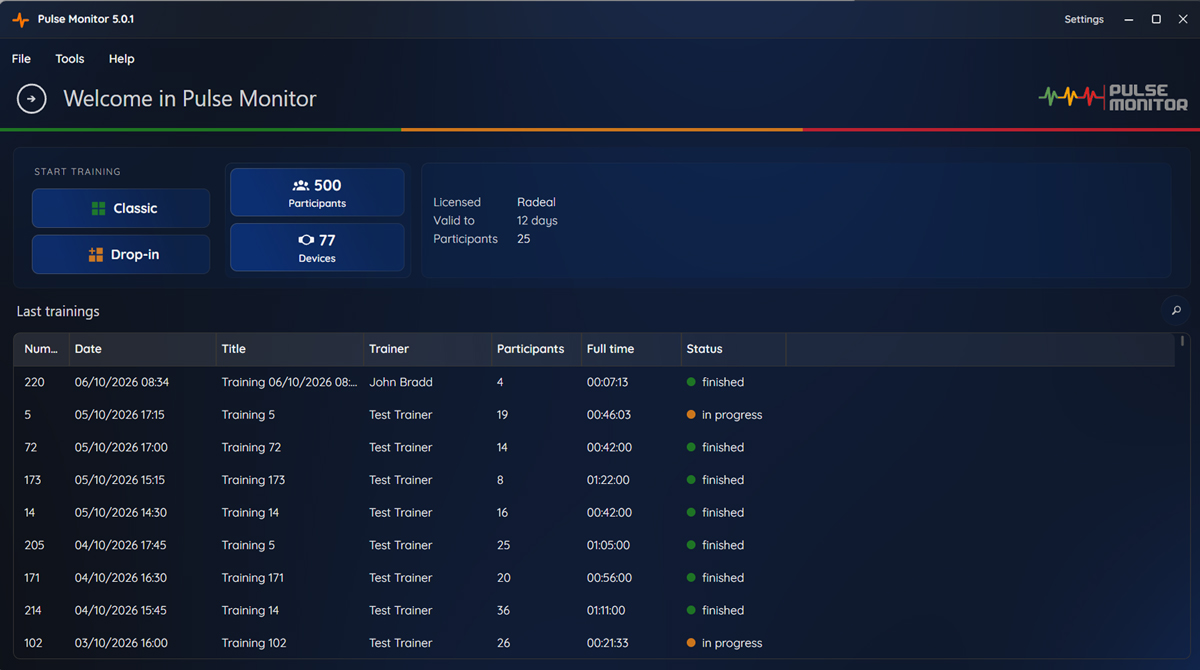
The main window is your home base. Everything starts here: you create trainings, open old ones, and reach every list and setting.
3.1 Starting a training#
Under Start training you choose the kind of session:
- Classic — Trainer assigns participants, records data, generates a report. Use it for a normal class: you decide who takes part, and every measurement is saved. See Classic training.
- Drop-in — People come and go freely — live view only, nothing is saved. Use it for open gyms and free workouts. See Drop-in sessions.
Hover the mouse over a tile to see this short description.
3.2 Participants and Devices#
The two buttons next to the tiles show the number of Participants and Devices (straps) currently registered. Click either one to open its list — it is the same as Tools → Participants and Tools → Devices.
3.3 The list of trainings#
The lower half of the window lists every training, newest first.
| Column | Meaning |
|---|---|
| Number | The consecutive number of the training |
| Date | When the training was created |
| Title | The name you gave it |
| Trainer | The trainer you chose |
| Participants | How many participants it has |
| Full time | The recorded duration |
| Status | new (not started yet), in progress (started, not finished) or finished |
- Search. Type in Search for training… to filter the list by title or trainer name. Clear the box to see everything again.
- Open. Double-click a row, or right-click and choose Open. What you see depends on the status — see Reopening a training.
- Remove. Right-click a row and choose Remove. After you confirm, the training is deleted together with all its recorded measurements.
Removing a training cannot be undone. If you only want to reclaim disk space from old recordings but keep the statistics, use File → Database → Database operations instead (Cleaning up old data).
3.5 Light and dark theme, language#
The look of the whole program — theme, colours, language — is changed in Settings → Application layout (Application layout). The language and colour-scheme changes take effect after a restart of the program.