
Before a strap can be used in a training, Pulse Monitor has to know it. In the program a strap — or an arm band, or an HR watch that broadcasts heart rate — is called a device. Every device has:
- an identifier that the program recognises it by — a number for ANT+ straps, an address for Bluetooth straps;
- a source — ANT+ or Bluetooth;
- a name you choose, so that you can tell the straps apart (for example 12).
Adding a strap to the program is called pairing in this manual. It is not the same as pairing in Windows: for Bluetooth straps you do not pair anything in the Windows settings. Pulse Monitor finds the strap, remembers its address, and connects when needed.
This is done once per strap. After that you can use the strap in any number of trainings.
6.1 The Devices window#
Open it with Tools → Devices, or by clicking the Devices button on the main window.
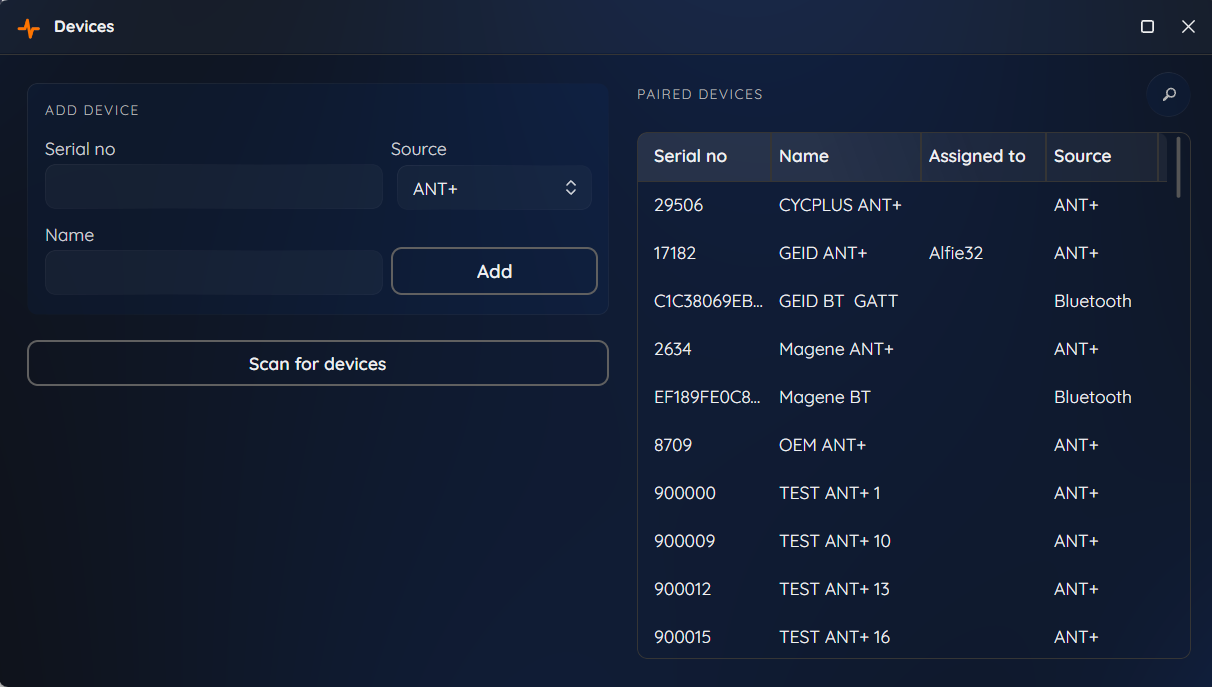
The window has three parts:
- Add device — a small form to add a strap manually.
- Scan for devices — a button that listens for straps in range and lists them under Detected devices.
- Paired devices — all straps already known to the program, with a search box.
6.2 Before you start#
Put the strap on, and moisten the sensor pads. Most heart-rate straps start to transmit only after they detect skin contact. Wear the strap on the bare chest, with the two electrode pads (the rubber or textile patches on the inside) moistened with water or electrode gel. A strap lying on a table sends nothing, and the program cannot find it.
Pair one strap at a time. When several straps transmit near the receiver, you cannot tell which number belongs to which strap. Put on a single strap, scan, add it, write its name on it — then take it off and do the next one.
6.3 Finding straps with the scanner#
- Make sure the antennas you need are working: the ANT+ stick is plugged in, and Bluetooth is switched on in Windows.
- Put on the strap.
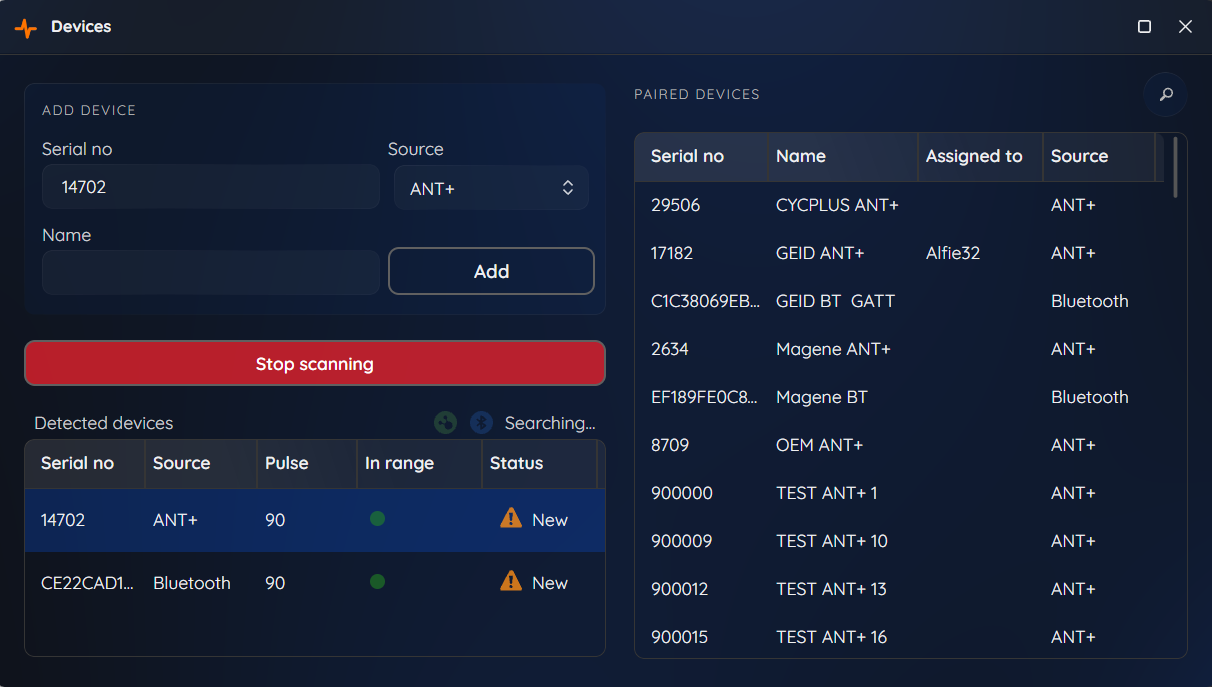
- Click Scan for devices. The button changes to Stop scanning, and the list Detected devices appears.
- While the scan runs, small pulsing icons show which receivers are active: the ANT+ icon and the Bluetooth icon. One scan listens to ANT+ and Bluetooth at the same time — but only to the technologies you enabled in Settings → Devices.
- Within a few seconds the strap appears in the list. Click it.
- Its identifier and source are copied into the Add device form. Type a Name and click Add.
The Detected devices list has these columns:
| Column | Meaning |
|---|---|
| Serial no | The identifier of the strap — a number (ANT+) or an address (Bluetooth) |
| Source | ANT+ or Bluetooth |
| Pulse | The heart rate the strap is sending right now |
| In range | How many seconds ago the strap was last heard |
| Status | New — not yet in your list, or Paired — already added |
Straps that support both ANT+ and Bluetooth. Most chest straps and arm bands support both technologies. During the scan the program then detects such a strap twice, as two different devices with two different serial numbers. We recommend pairing it only as ANT+. The number of Bluetooth devices connected at the same time is limited, while with ANT+ there is no such limit — and during a training one strap can use only one of the two technologies anyway.
If no strap appears, see The strap is not found. If the receiver cannot be opened, the program tells you what to check:
- Make sure the ANT+ antenna is connected to the USB port
- Make sure Bluetooth is turned on in your computer
When you are finished, click Stop scanning. Closing the window also stops the scan.
6.4 Adding a strap by hand#
Use the Add device form when you know the identifier — for example, it is printed on the strap — and do not want to scan.
| Field | What to enter |
|---|---|
| Serial no | For ANT+: the device number, a whole number greater than 0. For Bluetooth: the 12-digit address, such as AA:BB:CC:DD:EE:FF — colons and dashes are optional |
| Source | ANT+ or Bluetooth |
| Name | Any short name, for example the strap’s number |
Then click Add. The program checks the data:
- Complete all data — a field is empty.
- Invalid Bluetooth address – expected 12 hexadecimal digits, e.g. AA:BB:CC:DD:EE:FF — the Bluetooth address has the wrong form.
- This device is already paired! — the strap is already in the list.
Name straps with numbers, starting from 1. Write the number on the strap with a permanent marker, or stick a piece of tape on it. On a busy evening the trainer then simply hands strap number 7 to a participant, and the screen shows “7”.
6.5 The list of paired devices#
The Paired devices list shows:
| Column | Meaning |
|---|---|
| Serial no | The identifier of the strap |
| Name | The name you gave it |
| Assigned to | Optional. The participant for whom this strap is the default device (see Default device). Used only by people who have their own strap |
| Source | ANT+ or Bluetooth |
Type in Search for devices… to filter the list by name or number.
Right-click a device for its menu:
| Command | What it does |
|---|---|
| Range test | Opens the range test (below) |
| Release | Detaches the strap from the participant it is assigned to. The strap stays in the list |
| Remove | Deletes the strap from the list, after confirmation. The participant it was assigned to is left without a default device. Trainings you already recorded keep their data |
There is no limit on how many straps you register, only on how many are used at once in one training.
6.6 Range test#
The range test shows how far from the receiver a strap can still be heard. Use it to find the best place for the receiver in your room, to check a doubtful strap, or to find “dead corners”.
- In the Paired devices list, right-click the strap and choose Range test. (If a scan is running, the program stops it for you.)
- Put the strap on.
- Click Start test. The window says Waiting for signal… until the first signal arrives.
- Walk away from the receiver, and watch the window.
During the test a Bluetooth strap (or watch) must not be connected to anything else, for example to a phone. Switch off Bluetooth on the phone first, otherwise the strap cannot be heard.
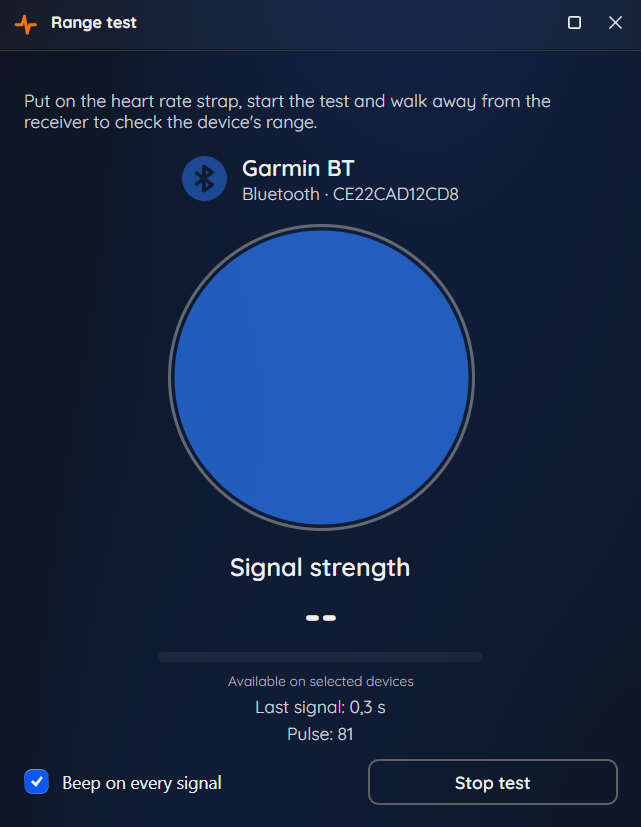
| Element | Meaning |
|---|---|
| A flashing circle | Flashes with every signal received from the strap |
| Signal strength (in dBm) and a bar | How strong the signal is. A value closer to 0 is better: for example −60 dBm is strong, −90 dBm is weak. Available on selected devices — not every strap reports it |
| Last signal | How many seconds ago the last signal came |
| Pulse | The heart rate sent in the signal |
| Beep on every signal | An audible click on every signal, so that you can test without looking at the screen |
When the signal is not heard for about 3 seconds (ANT+) or 5 seconds (Bluetooth), the window shows Signal lost. You have found the edge of the range. Click Restart test to try again from another place, or Stop test to finish.
Do the test with two people: one carries the strap, the other watches the screen with the Beep on every signal option on and tells you where the sound stops.
6.7 Range of the straps#
How far from the receiver can a strap be? There is no single number, and for both technologies the answer is “it depends”.
ANT+ ¹. ANT radios are designed to operate in typical environments up to about 30 metres in the open. A strap worn on the chest is a small antenna pressed against a body full of water, which absorbs the signal, so in practice you should plan for around 10 metres in a clear room — and less when other people stand between the strap and the stick.
Bluetooth ². The Bluetooth range is not fixed: the Bluetooth SIG names three factors that determine it — the radio spectrum (Bluetooth uses the 2.4 GHz band), the transmit power of the strap (the standard allows from −20 dBm to +20 dBm, i.e. 0.01 mW to 100 mW) and the receiver sensitivity of your adapter. A chest strap has a tiny battery and therefore a low transmit power, and a laptop’s internal adapter is usually less sensitive than a good USB dongle. The result can be anything from a few metres to several tens of metres. For orientation: manufacturers of Bluetooth heart-rate straps state ranges of 10 m, often 30 m and even 100 m — treat these as best-case figures in the open.
What affects the range in your studio
- The body of the wearer and of other participants between the strap and the receiver.
- Walls, metal (computer case, lockers, mirrors) and water.
- Interference in the same 2.4 GHz band: Wi-Fi, USB 3 devices, microwave ovens, other wireless equipment.
- The battery of the strap — a weak battery lowers the transmit power.
- The receiver: the position of the ANT+ stick, the quality of the Bluetooth adapter.
Do not rely on tables from the Internet: measure your own room with the Range test (Range test) with a real participant wearing the strap.
¹ ANT — Garmin / ANT developer documentation (the ANT+ technology owner): ANT stacks and SoftDevices have been designed to operate in typical operating environments up to 30 meters. See https://developer.garmin.com/ant-program (ANT Advantages page). The “about 10 metres” planning figure for chest straps is the manual’s practical recommendation, not a specification.
² Bluetooth — Bluetooth SIG, 3 key factors that determine the range of Bluetooth: https://www.bluetooth.com/blog/3-key-factors-that-determinethe-range-of-bluetooth
6.8 Choosing the right place for the receiver#
- Put the ANT+ stick so that it has a free line of sight to the participants. A short USB extension cable lets you move it away from the computer’s metal case, which otherwise absorbs the signal.
- Keep the stick away from other USB 3 devices and from Wi-Fi routers: they emit noise in the same radio band.
- Plan for around 10 metres with ANT+ straps in a clear room; Bluetooth varies with the strap and the adapter (Range of the straps). People’s bodies between the strap and the receiver shorten it in both cases. Measure it with the Range test.
- For a large studio use two ANT+ sticks and good-quality active USB extension cables (Settings → Devices → Connected receivers: 2) on opposite sides of the room.
- For Bluetooth, place the computer near the group. The built-in adapter in a laptop has a smaller range than a dedicated USB Bluetooth dongle.
6.9 Batteries and care#
- Heart-rate straps use a coin battery (usually CR2032) that lasts for roughly a year of regular use. A strap that has a weak battery often “drops out” or gives odd values — change the battery first.
- For care (rinsing, drying, washing, storage), always follow the recommendations of the manufacturer of your strap.
6.10 Straps and licences#
The number of straps you may register is not restricted by the licence. What is restricted by the licence is the number of participants in one training (Licence and registration).