
A participant is a person whose heart rate you want to monitor. Registering participants in advance has big advantages: the live screen shows their nickname, the percentage and calories are calculated from their own data, their results are kept, and they can receive a report by e-mail.
7.1 The participants list#
Open it with Tools → Participants, or with the Participants button on the main window.
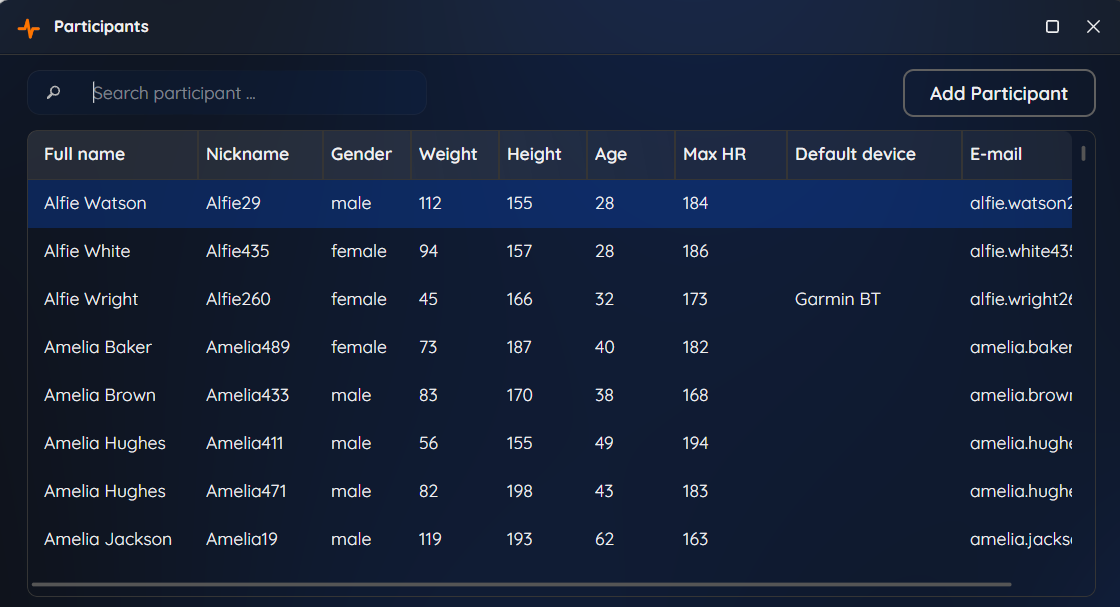
| Column | Meaning |
|---|---|
| Full name | The participant’s name |
| Nickname | The short name shown on the live screen |
| Gender | male or female |
| Weight, Height, Age | Body data, used to calculate calories |
| Max HR | The participant’s maximum heart rate, the reference for all percentages |
| Default device | Optional. The participant’s own strap |
| Where reports are sent |
At the top, Add Participant creates a new participant, and Search participant… filters the list by name, nickname or e-mail address as you type.
Right-click a participant, or double-click for the card:
| Command | What it does |
|---|---|
| Participant card | Opens the participant’s card with statistics (Participant card). Also opens with a double-click |
| Edit | Opens the participant’s data for editing |
| Remove | Deletes the participant, after confirmation |
7.2 Adding and editing a participant#
Click Add Participant, fill in the form and click Save.
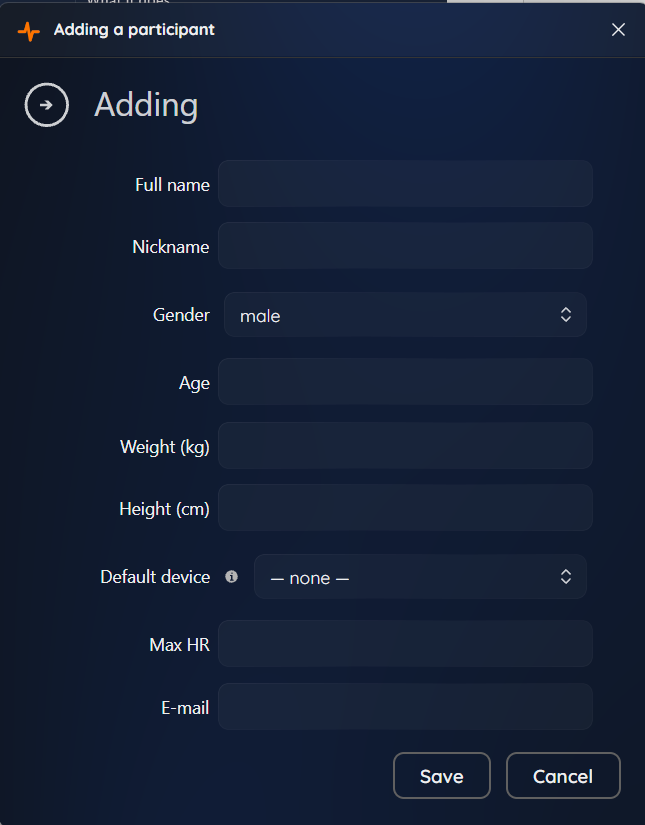
| Field | What to enter |
|---|---|
| Full name | Name and surname. Used on reports |
| Nickname | A short name — this is what appears on the live screen. Use something your group will recognise. Shorter is better: it must fit in the box |
| Gender | male or female, used in the calorie calculation |
| Age | In years |
| Weight | In kg or lbs, according to your units setting |
| Height | In cm or inch |
| Default device | Optional. The strap this participant normally uses (Default device). — none — is allowed |
| Max HR | The maximum heart rate (Maximum heart rate) |
| Optional. The address to which the participant’s reports are sent |
All fields except E-mail are required. If something is missing, or weight, height or maximum heart rate is not a positive number, the program asks you to Enter the relevant data.
Choose your units first. Weight and height are stored exactly as you type them, in the unit selected at that moment under Settings → Application layout → Units. If you change from metric to imperial later, existing numbers are not converted — they are simply read in the new unit. So decide on metric or imperial before you enter your first participant.
7.2.1 Maximum heart rate#
Max HR is the highest heart rate this person can reach. Every percentage and every colour on the screen is calculated from it, so it is the single most important number you enter.
- If you know it — from a stress test or from a hard effort wearing a strap — type it in. This is the best case.
- If you do not, click into the empty Max HR field after you entered the age and gender. Pulse Monitor fills in an estimate calculated from age and gender (see Appendix: formulas).
The estimate is a population average: for an individual it can be off by ±10 beats or more. If a participant keeps “maxing out” at 95 % without effort — or never gets above 80 % even when exhausted — adjust their Max HR. You can do it during a training too, without losing anything (Pausing and going back).
7.2.2 Default device#
If a participant always uses the same strap, set it as their Default device. The advantages are two-fold:
- In a Classic training, when you pick the participant, their strap is selected for you (their name has a star ★ in the list).
- In Drop-in sessions, a strap that is the default device of a participant is displayed with that participant’s nickname and data, instead of a “?” (Drop-in sessions).
A strap can be the default device of only one participant. In the Devices list the column Assigned to shows who owns it.
7.2.3 Calories#
The calories shown are an estimate from heart rate, age, gender and weight; they are higher the harder the participant works. The formula is in Appendix: formulas. Treat them as a comparison between workouts, not as a medical measurement.
7.3 Removing a participant#
Right-click the participant and choose Remove. The program asks Delete (name) together with all of their data? Trainings on record: N. This cannot be undone. — click OK to confirm.
Removing a participant also deletes all of their history: their results in every training they took part in. This cannot be undone. Make a backup first if you are not sure (Backup and restore).
7.4 Exporting and importing lists#
You can move your participants and your devices to another computer, or share them between two computers in a club.
7.4.1 Export#
- File → Data export → Users data export… saves all participants.
- File → Data export → Devices data export… saves all devices.
Both open a file dialog. Participants are saved to a file with the extension .pmp, devices to a file with the extension .pmd. A message A copy of the data has been saved confirms the export.
A participant’s default device is exported together with the identifier of the strap, so that it can be matched on the other computer.
7.4.2 Import#
- File → Data import → Import users data… or Import devices data…
The import window asks what to do with the data from the file:
| Option | Result |
|---|---|
| Complete and update from a data file | New items are added. Items that already exist (a participant with the same full name, a device with the same number) are updated from the file |
| Only a complete list of new data from a file | Only the new items are added. Items that already exist are left as they are |
| Remove and replace the entire list with the data from a file | The whole list is deleted first and then replaced by the file |
Choose the file with Select the file to import. When it is done, the program confirms Import completed successfully.
When you move both participants and devices, import the devices first, then the participants. That way each participant’s default device is found and reconnected. A device that is not in the program is silently skipped and the participant simply has no default device.
The third option deletes your current list. Make a backup first (Backup and restore).
Files from a different source, or damaged ones, are refused with Invalid data file format.
7.5 Trainers#
A trainer is simply a name that you can select when creating a training, so that it appears in the training list and on the reports. Maintaining a list of trainers saves typing and keeps the spelling consistent.
Open the list with Tools → Trainers.
- Add trainer adds a name. If the name is already on the list, the program says This trainer already exists!
- Search trainer… filters the list.
- Right-click a trainer to Edit the name or to Remove it (after confirmation: Do you want to remove this trainer?).
A trainer’s name is saved in each training as text. Renaming or removing a trainer in this list does not change trainings that were already created.
A trainer is also added to the list automatically when you type a new name in the Create new training window. The program remembers the last trainer you used and suggests that name next time.