
2.1 Installing Pulse Monitor#
Installation is a single wizard and takes about a minute.
- Download the installer from https://www.pulsemonitor.net and run it. Windows will ask for permission to make changes — the installer needs administrator rights, because it also installs the driver for the ANT+ stick.
- Follow the wizard: Welcome → Licence agreement → Installation folder → Install → Finish. The default folder (
C:\Program Files (x86)\PulseMonitor5) is a good choice. - When the wizard finishes, a Pulse Monitor 5 icon is on your desktop and in the Start menu.
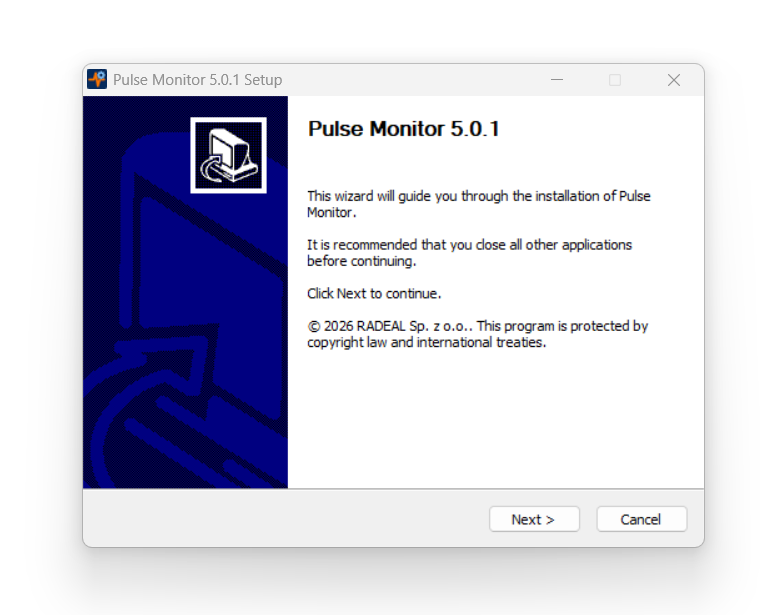
Do not plug the ANT+ stick into the computer before the installation is complete. The installer puts the correct driver in place first; the stick is recognised properly only afterwards. If you plugged it in earlier, simply unplug it, finish the installation and plug it in again.
2.1.1 What the installer adds#
| Item | Purpose |
|---|---|
| Pulse Monitor 5 (desktop and Start menu) | Starts the program |
| Manual (Start menu) | Opens this manual as a PDF |
| Uninstall (Start menu) | Removes the program |
| ANT+ USB stick driver | Lets Windows talk to the ANT+ receiver |
| Microsoft Visual C++ 2008 runtime | A system component used by the ANT+ library (installed only if missing) |
Bluetooth needs nothing extra: the program uses the Bluetooth support that is built into Windows 10 and 11.
2.1.2 Plugging in the receiver#
After the installation, plug the ANT+ USB stick into any free USB port — preferably a port on the computer itself rather than an unpowered hub. Put the stick on a short USB extension cable if the computer sits behind a desk or inside a rack: the stick should “see” the room, and a stick tucked behind a metal case shortens the range noticeably.
You can also use long active USB extension cables to place the antennas around the room and increase their range.
For Bluetooth, make sure Bluetooth is switched on in Windows (Settings → Bluetooth & devices). You do not pair the straps with Windows; Pulse Monitor finds and connects to them itself.
2.2 Starting the program#
Double-click Pulse Monitor 5. A short start-up window appears, showing the version number while the program checks for updates and prepares its database. A moment later the main window opens.
Only one copy of Pulse Monitor can run at a time. If you start it a second time, the second copy closes immediately.
The very first time, the program opens in the language of your Windows, if it is one of the supported languages, otherwise in English. You can change the language at any time in Settings → Application layout (Application layout).
2.3 Updates#
Pulse Monitor periodically checks whether a new version is available.
When a new version exists, a window opens with the version number, and you can start downloading the installer right away.
We recommend installing every update: they bring improvements and fixes. Your data (participants, devices, trainings, settings) is kept when you update.
You do not need to uninstall the old version first. Just run the new installer on top of it.
2.4 Where Pulse Monitor keeps your data#
Everything you enter and record is stored only on your computer, in the folder:
C:\Users\<your name>\AppData\Roaming\PMONITOR5\(Type %APPDATA%\PMONITOR5 in the Windows Explorer address bar to jump there.)
| File or folder | Contents |
|---|---|
5_pmonitor.db |
The database: participants, devices, trainers, trainings and every recorded measurement |
settings.json |
Your settings (club name, zones, appearance, e-mail account…) |
license5.dat |
Your licence. It is assigned to the identifier of the computer on which it was installed |
traintcx\ |
The full raw heart-rate recording of every training (used for CSV export) |
log.txt |
A technical log, useful when you contact support |
Do not copy or edit 5_pmonitor.db by hand while the program is running. To make a copy of your data use File → Database → Save backup… (Backup and restore).
2.5 Uninstalling#
Use Start → Pulse Monitor → Uninstall, or Windows Settings → Apps. Uninstalling removes the program but does not delete the data folder described above, so your participants and history are still there if you install Pulse Monitor again later. If you want to remove everything, delete that folder yourself afterwards.