
A Classic training is the full-featured session: you decide who takes part and with which strap, the program records everything, and afterwards every participant has a report.
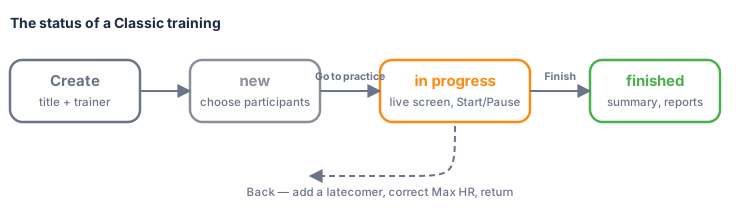
A training always has one of three statuses, shown in the list on the main window:
| Status | Meaning | What you can do |
|---|---|---|
| new | Created, not started | Add and remove participants, start the training |
| in progress | Started at least once, not finished | Add or remove participants, go back to the live screen and continue |
| finished | Closed with Finish | Look at the summary and reports. Participants can no longer be changed |
8.1 Step 1 — Create the training#
On the main window click Classic. The Create new training window opens.
| Field | What to enter |
|---|---|
| Title | The name of the class. The program suggests Training with the current date and time — keep it or type something better, such as Spinning Monday 18:00 |
| Trainer | Pick a trainer from the list, or type a new name. The last trainer you used is suggested |
Click Next. Click Cancel to give up — nothing is created.
8.2 Step 2 — Choose participants#
The training window opens. Its title shows the training name and trainer, followed by (new).
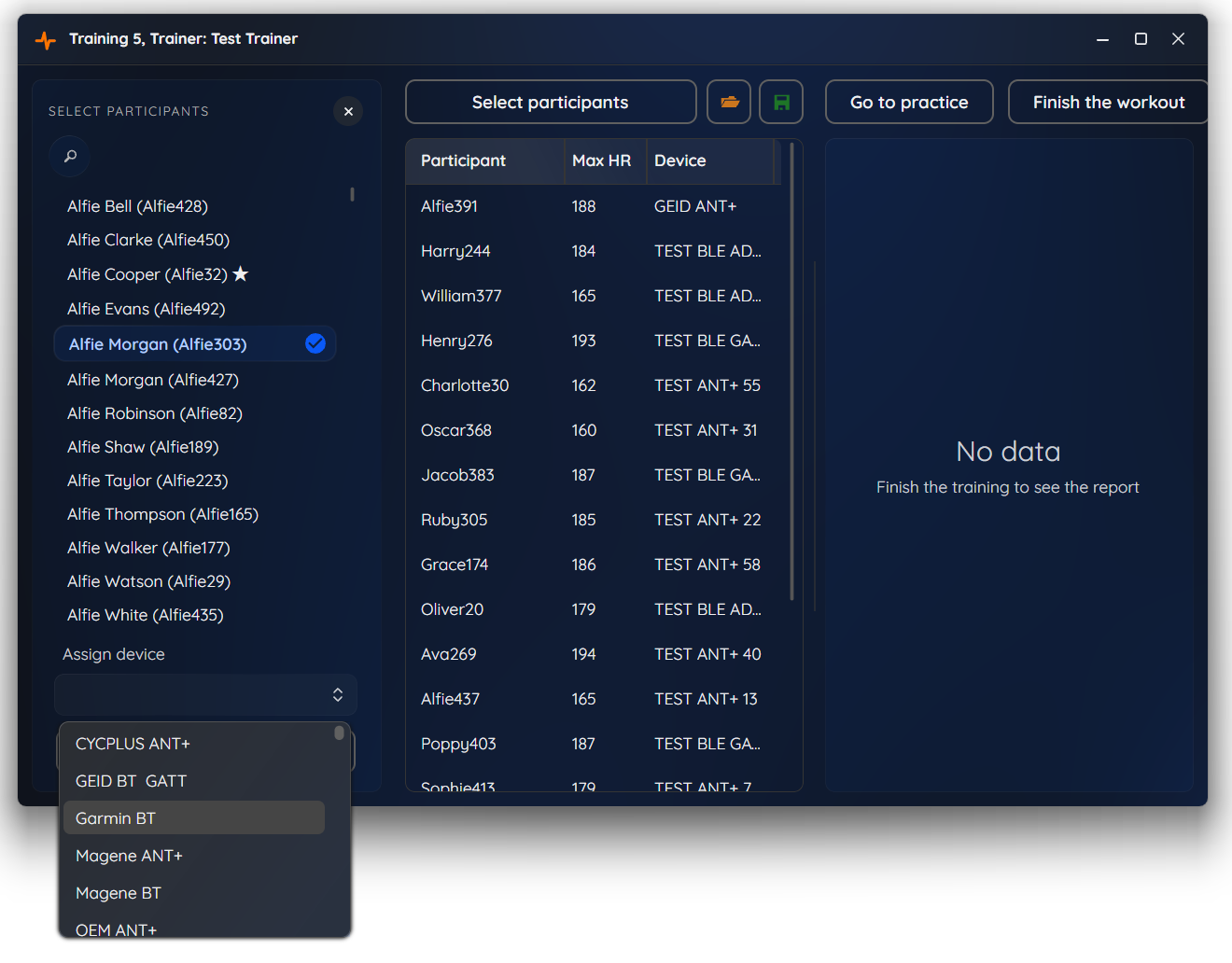
The window has two sides: the participants of this training on the left and a work area on the right (empty before the start; after the training it shows reports).
8.2.1 Adding a participant#
- Click Select participants. A panel opens on the left.
- Find the person: scroll the list or type in Search participant…. Participants who are already in this training are not shown again. A ★ next to a name means that the participant has a default device.
- Click the name. If the participant has a default device, it is selected for you under Assign device. Otherwise, choose a strap from the list.
- Click Add. The participant appears on the list.
Under Assign device you only see straps that are not yet used in this training, and only of the kinds enabled in Settings → Devices.
Repeat for everyone. Close the panel with the × in its corner, or by clicking Select participants again.
Participants and straps must already exist in the program before you can select them. Prepare them in advance in Tools → Participants and Tools → Devices, and give every regular participant a default device — then adding a participant to a class is a single click.
The list of the training’s participants has three columns: Participant, Max HR and Device.
8.2.2 Limits#
- Participants. You cannot add more people than your licence allows: Your license does not allow you to add another participant to the training. The technical maximum is 42. A program without a licence allows two (Licence and registration).
- Bluetooth straps. You cannot add more Bluetooth straps than the limit set in Settings → Devices: No more Bluetooth straps can be added to this training – the maximum is 7. Use ANT+ straps instead. ANT+ straps have no such limit.
- One strap per participant and one participant per strap within a training.
8.2.3 Editing and removing#
Right-click a participant in the list of the training:
| Command | What it does |
|---|---|
| Edit | Opens the participant’s data — for example, to correct the Max HR — and applies the change |
| Remove from training | Removes the participant from this training only, after confirmation. The participant stays in your database |
8.2.4 Saving and loading a list of participants#
Do you run the same class every week with the same people? Two small buttons above the list save you the setup:
- Save list — saves the current list of participants with their straps to a file with the extension
.pmc. The file name is taken from the training title. - Load list — loads such a file into the current training. Participants and straps that were already added, and ones that no longer exist in your database, are skipped. The program reports List loaded. Items in file: N. Added: M.
The list is only valid on the same computer / the same database: it points to participants and straps that are already in the program. It does not contain personal data.
8.3 Step 3 — Go to the live screen#
When everyone is on the list, click Go to practice. (The button appears as soon as there is at least one participant.) If the list is empty, the program reminds you to Select trainees.
The training status changes to in progress, and the live screen opens in full screen. Participants’ boxes are there, but nothing is being recorded yet: the training starts only when you press Start.
8.4 Step 4 — The live screen#
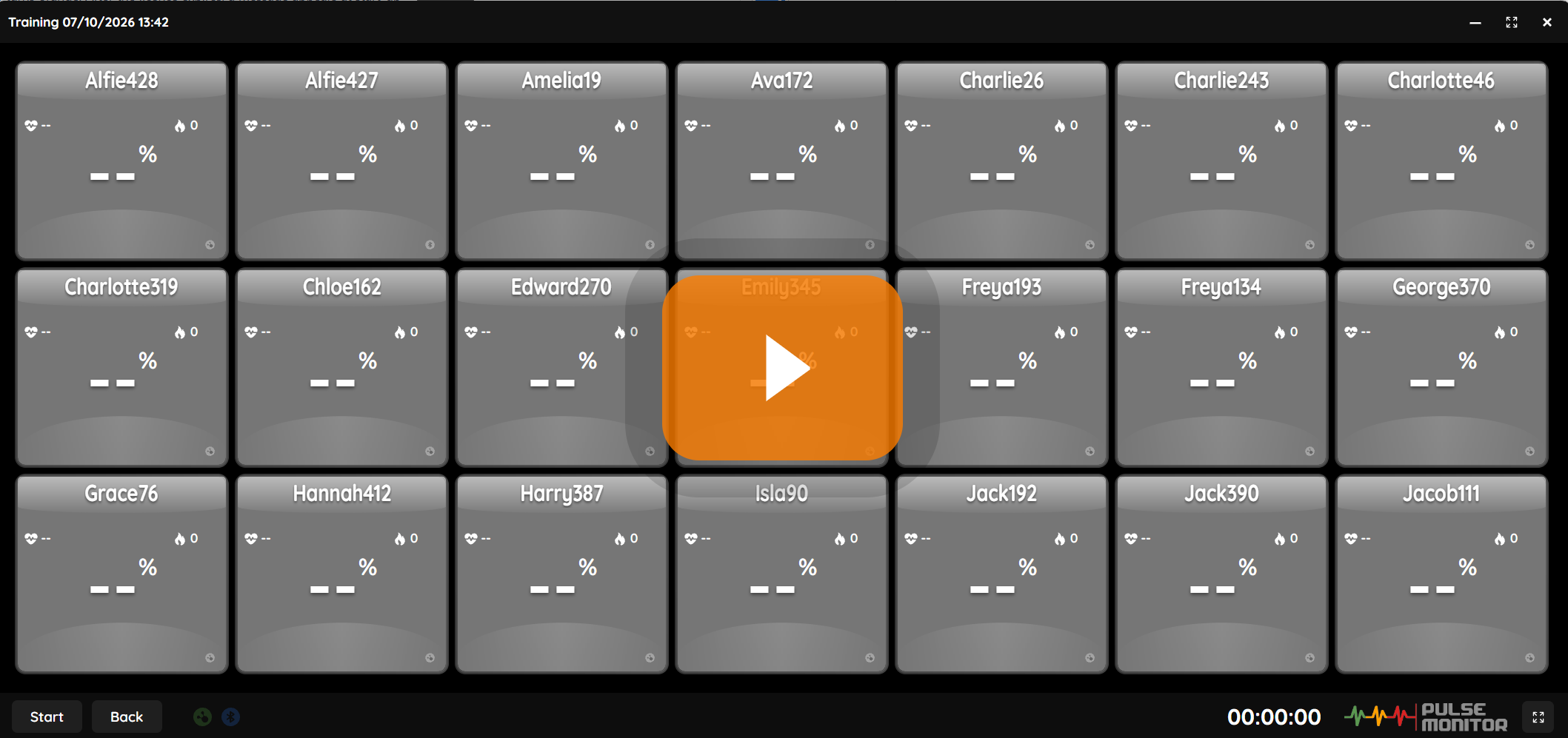
The live screen is designed for a wall display: it fills the whole screen, uses a black background and large, high-contrast digits. It never needs scrolling — whether you have 4 or 42 participants, the program arranges the boxes in a grid and enlarges or shrinks them so that every box is always on the screen.
8.4.1 The bottom bar#

| Element | What it does |
|---|---|
| Start / Pause | Starts the recording. After starting, the button becomes Pause |
| Back | Leaves the live screen without finishing the training (Pausing and going back) |
| Finish and summary | Ends the training and opens the summary. Visible after the training was started at least once |
| Pulsing ANT+ and Bluetooth icons | Show which receivers are open and working |
| Time (hh:mm:ss) | The recorded duration of the training |
| Logo | The Pulse Monitor logo |
| Full-screen button | Toggles full screen |
The big orange Play button in the middle of the screen does the same as Start. It disappears once the training runs.
8.4.2 Starting#
Press Start (or the big Play button). The clock starts and recording begins. From now on the program saves each participant’s heart rate every ten seconds.
Until you press Start the boxes already show live data, so you can check that every strap works before the class begins. Nothing is recorded and the clock does not run.
8.4.3 Reading the participant box#
Each participant has one box.
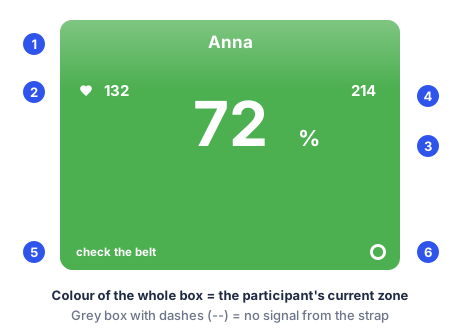
| Number | Element | Meaning |
|---|---|---|
| 1 | Nickname | The participant’s nickname. In Drop-in sessions, a small ? appears after it for an unknown participant |
| 2 | Left slot | By default the heart rate in beats per minute |
| 3 | Centre slot | The large number: by default the percentage of the participant’s maximum heart rate |
| 4 | Right slot | By default the calories burned so far |
| 5 | Check the belt | A warning in the bottom-left corner, see below |
| 6 | Technology icon | In the bottom-right corner: the technology of the participant’s strap and its signal |
You choose what slots 2, 3 and 4 show in Settings → Training (Participant data presentation).
8.4.3.1 The colour of the box#
The colour of the whole box is the colour of the participant’s current cardio zone.

With the default zones: grey is rest (up to 59 %), blue is a warm-up, green is moderate effort, orange is hard effort, and red is very hard effort, near maximum (from 90 %). A trainer can read the state of the whole room from the colours alone.
A grey box with dashes (–) means that no signal is being received from that strap at the moment — the strap is not on, is out of range or its battery is flat. The values come back automatically as soon as the strap is heard again.
8.4.3.2 The “check the belt” warning#
A strap that has lost good contact with the skin often keeps sending its last value for a while, or sends a perfectly constant one. When the heart rate has not changed over a series of consecutive readings (about 15 on one receiver), the box shows check the belt in its bottom-left corner. Ask the participant to tighten the strap and moisten the electrodes.
- The warning disappears as soon as the value changes.
- You can switch it off in Settings → Training → Monitor sensor contact.
8.4.3.3 The technology icon#
In the bottom-right corner each box shows the technology of that participant’s strap:
| Icon | Meaning |
|---|---|
| Green ANT+ symbol | An ANT+ strap that is currently heard |
| Blue Bluetooth symbol | A Bluetooth strap that is currently heard |
| The same symbol in white and dimmed | The strap is not heard at the moment (no signal) |
| Two ANT+ symbols | You use two ANT+ receivers; each symbol shows whether that receiver hears the strap |
You can hide these icons completely with Settings → Training → Show antenna activity.
8.4.4 Pausing and going back#
- Pause stops the clock and the recording; the boxes continue to show live values. Press Start to continue. Use it for a water break or an explanation.
- Back closes the live screen and brings you back to the training window — without finishing the training. The status stays in progress, and everything recorded so far is kept. There you can, for example:
- add a participant who came late,
- correct a participant’s Max HR,
- then click Go to practice again and press Start.
When you come back to the live screen, the clock continues from where it stopped, and the calories and highest heart rate continue from their earlier values — they do not start from zero.
Late arrival: Back → Select participants → Add → Go to practice → Start. Everybody else’s measurements are not interrupted for more than a few seconds, and the program records nothing while you are in the training window.
8.4.5 Full screen#
The live screen opens in full screen, without a title bar. To exit full screen press Esc or click the full-screen button in the bottom bar; click it again to return. In the windowed mode there is a title bar with the usual minimise, maximise and close buttons.
Keep the computer awake. While the live screen is open, Windows does not go to sleep and does not start the screen saver (Settings → Devices → Block sleep and screen saver during training). This is on by default.
8.4.6 Finishing#
Click Finish and summary. The program asks Do you want to end this workout? Click Yes.
The recording is closed, the results of every participant are calculated and saved, the status becomes finished, and the summary opens (The summary screen). A finished training cannot be continued.
Finish and summary is final. If somebody asked you for just a short break, use Pause, not Finish.
8.5 Reopening a training#
On the main window, double-click a training in the list (or right-click and choose Open). What you see depends on the status:
| Status | Opens | Typical use |
|---|---|---|
| new | The training window | Prepare participants in advance, start later |
| in progress | The training window with Go to practice | Continue the class after a break or after a crash of the computer |
| finished | The training window with the Summary and Send reports buttons | Look at the results, send or save reports |
If the computer switched off or the program crashed during a class, the recorded data is not lost: the training is still in progress. Open it and go on, or click Finish the workout in the training window to close it with what has been recorded.
8.6 Deleting a training#
Right-click a training in the main list and choose Remove. After confirmation (Do you want to remove this training?) the training and all its measurements — including the raw data file — are deleted. This cannot be undone.