
Right after a Classic training ends — and at any time afterwards — you can look at the results, give the participants their reports, or export the data. Drop-in sessions are not recorded, so they have no reports.
10.1 The summary screen#
When you click Finish and summary on the live screen, a summary screen opens in full screen: one coloured box per participant, in the same grid as on the live screen.
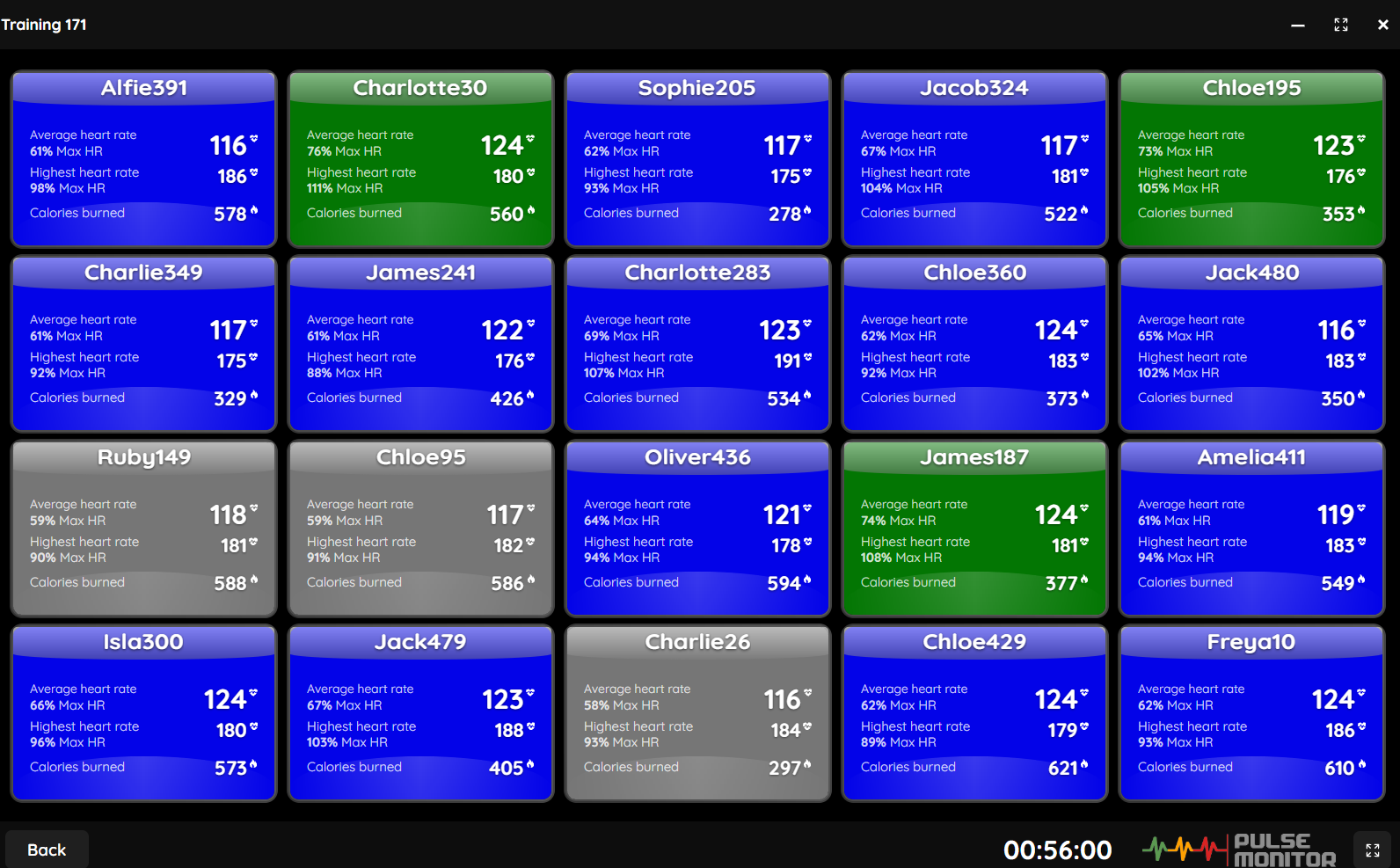
Each box shows:
| Value | Meaning |
|---|---|
| Average heart rate | The average over the whole training, and — in the line above the number — the same value as a percentage of the maximum |
| Highest heart rate | The peak, with its percentage |
| Calories burned | The total for the whole training |
The colour of a box is the zone of the participant’s average heart rate, so you see at once who worked at which intensity during the whole class. The total time of the training is shown in the bottom bar.
Click a participant’s box to open their heart-rate chart: a line of the heart rate against the time of the training, drawn over coloured bands of your zones. A participant who was present for only a part of the class has their line in the right place along the time axis. Close it with × or Esc. Back returns to the training window.
The percentages in reports and in the summary are always calculated from the participant’s maximum heart rate as it was when the training was finished (it is remembered when you click Finish). If you change a participant’s Max HR later, the reports of their old trainings do not change.
10.2 The training window of a finished training#
Open a finished training from the main window. The window shows the list of participants on the left, and a report of the selected participant on the right.
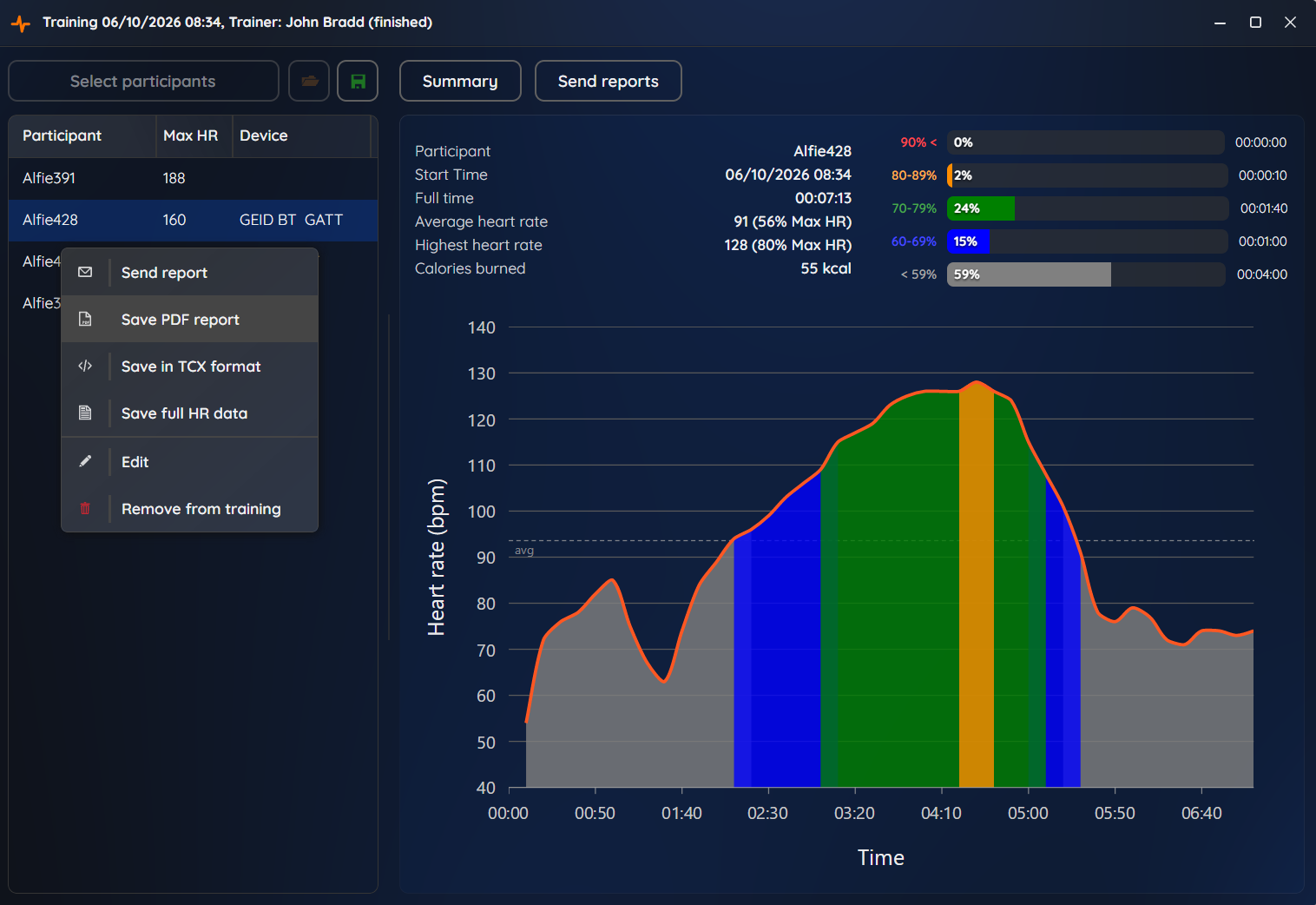
The report of a participant has three parts:
- The figures: Participant, Start Time, Full time, Average heart rate, Highest heart rate and Calories burned.
- Training in zones: a bar for each zone showing how much time the participant spent there and what percentage of the training that is.
- The heart-rate chart of the whole training, drawn over the zone bands.
If a participant’s strap did not deliver any data during the training, the panel says No data was recorded for this participant and no report can be created for them.
10.3 The PDF report#
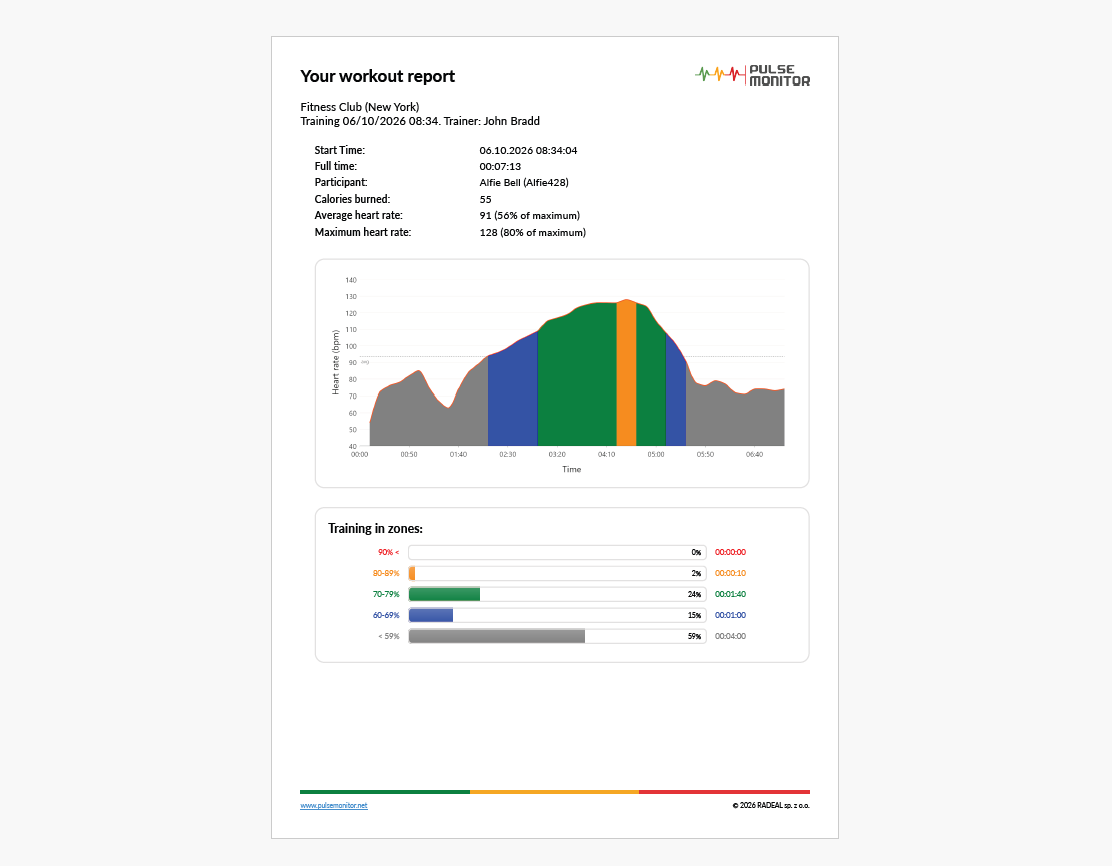
A one-page A4 report with:
- the title Your workout report, the club name and location, the name of the training and the trainer — and your logo in the top-right corner (set in Settings → Reports);
- a table: Start Time, Full time, Participant, Calories burned, Average heart rate and Maximum heart rate, each with its percentage of maximum;
- Training in zones: for every zone, the time and the percentage, in the zone’s colour;
- the heart-rate chart of the training;
- a footer with the address of the product’s website.
The language of the report is the language of the program. Chinese and Korean reports are supported, too.
10.4 Sending reports#
A participant receives the report by e-mail: a friendly message with the main figures, and the PDF and TCX files as attachments. The subject reads Your workout report.
Before you send anything:
- Set up the mail account and the club data in Settings → Reports (Reports).
- Fill in the e-mail address of each participant.
- Be connected to the Internet.
10.4.1 One participant#
Right-click the participant and choose Send report. The program checks for an e-mail address (This participant has no email address), asks Do you want send a report to the user? and sends the message. A confirmation says Report sent, or Failed to send the report.
10.4.2 All participants#
Click Send reports. The program asks Whether to send reports to customers? and then opens a small window with a progress bar and the name of the participant to whom the report is currently being sent. Sending to a large group may take a while; Cancel stops it at any moment, and the reports that already went out stay sent. At the end the program says Reports sent: N.
Reports are sent only to participants who have not received one yet. A participant with no e-mail address is skipped. You can click Send reports again later — for example after adding missing addresses — and only the remaining participants will get a message.
Send the reports right after the class. Participants like to see their heart-rate chart while they still remember how they felt.
If sending fails every time, check the mail account with Test settings, and — for Gmail — read the guide linked in Settings → Reports.
10.5 Exporting the data#
You can take the recorded data of a participant to other programs. Right-click the participant of a finished training:
| Format | Command | Contents | Use it for |
|---|---|---|---|
| Save PDF report | The report described above | Printing, archiving, sending by hand | |
| TCX | Save in TCX format | A training with the heart rate every ten seconds, total time, calories, average and maximum heart rate | Importing the workout into fitness services and apps that read TCX files |
| CSV | Save full HR data | Every raw reading: two columns, hr and time (with a tenth of a second), separated by semicolons |
Your own analysis in a spreadsheet |
Straps send readings at various intervals — mostly once a second, sometimes several times a second, sometimes once every two or three seconds. That is why the CSV rows are not at exactly regular intervals.
A participant who has no recorded data cannot be exported: the program says so (No data to write or No data was recorded for this participant).