
The participant card is the personal page of one participant. It collects, in a single window, everything the program knows about them: their data, their history and — most useful — how their heart rate changes over weeks and months. Use it to see progress: a falling average heart rate at the same effort is a good sign.
11.1 Opening the card#
Open Tools → Participants and then either:
- double-click the participant, or
- right-click the participant and choose Participant card (the first item in the menu).
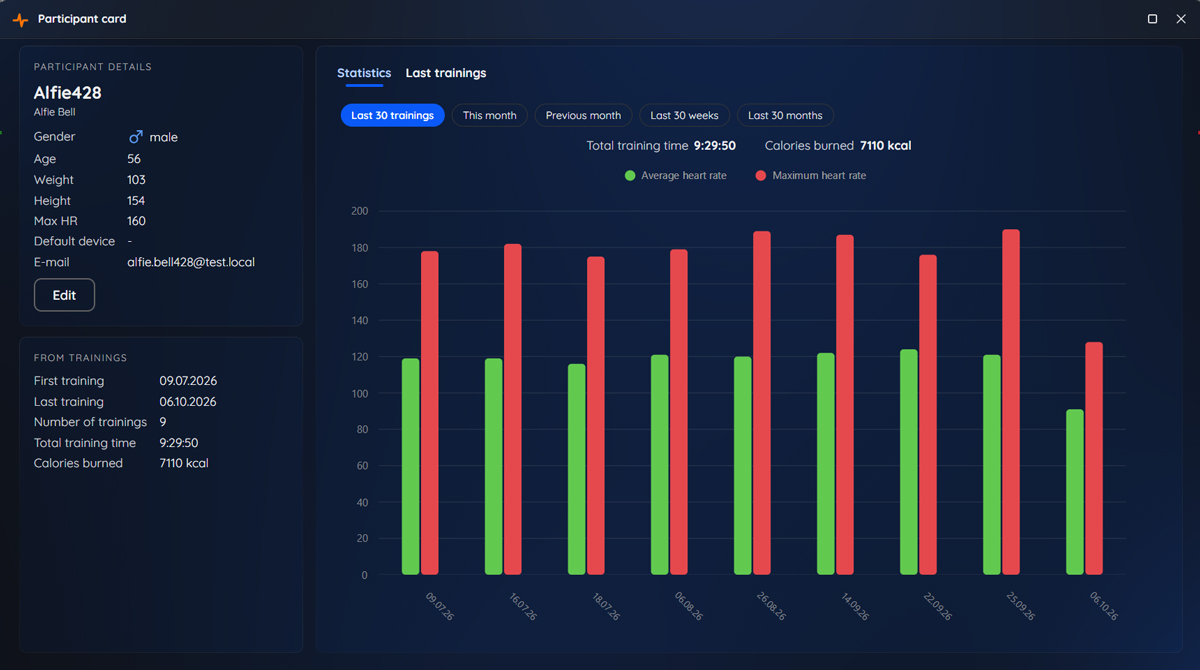
11.2 The left panel#
The left panel has two sections.
Participant details — the nickname in large letters, the full name below it, and then the gender (with an icon), age, weight, height, Max HR, default device and e-mail. The Edit button opens the participant’s form, so you can correct something without leaving the card.
From trainings — figures from the participant’s whole history:
| Line | Meaning |
|---|---|
| First training / Last training | The dates of the first and the last measured training |
| Number of trainings | How many trainings the participant took part in |
| Total training time | The sum of the recorded time |
| Calories burned | The sum of the calories |
11.3 The Statistics tab#
The right panel shows a bar chart. For every training or period there are two bars:
- a green bar — the average heart rate;
- a red bar — the highest heart rate.
Above the chart the program shows the total time and the calories of the range you selected.
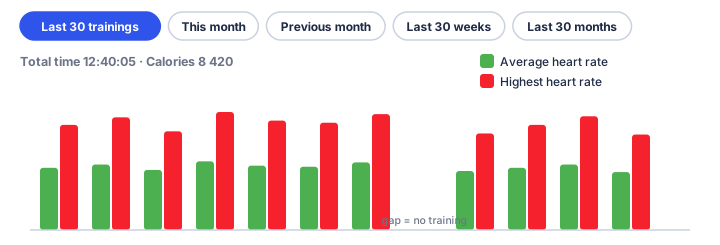
Choose the range with the buttons above the chart:
| Range | What the bars represent |
|---|---|
| Last 30 trainings | One pair of bars per training, the 30 most recent |
| This month | The trainings of the current calendar month |
| Previous month | The trainings of the previous month |
| Last 30 weeks | One pair of bars per week |
| Last 30 months | One pair of bars per month |
When there is less history than the maximum of 30 positions, the chart is simply shorter. A week or a month in which the participant did not train appears as a gap.
How the numbers are calculated.
- Only finished trainings in which the participant was actually measured are counted.
- The average of a week or a month is weighted by time: a long training counts more than a short one.
- The highest value of a week or a month is the highest of its trainings.
11.4 The Last trainings tab#
The second tab lists every training of the participant, with its Date, Title, Full time, Average heart rate, Maximum heart rate and Calories burned.
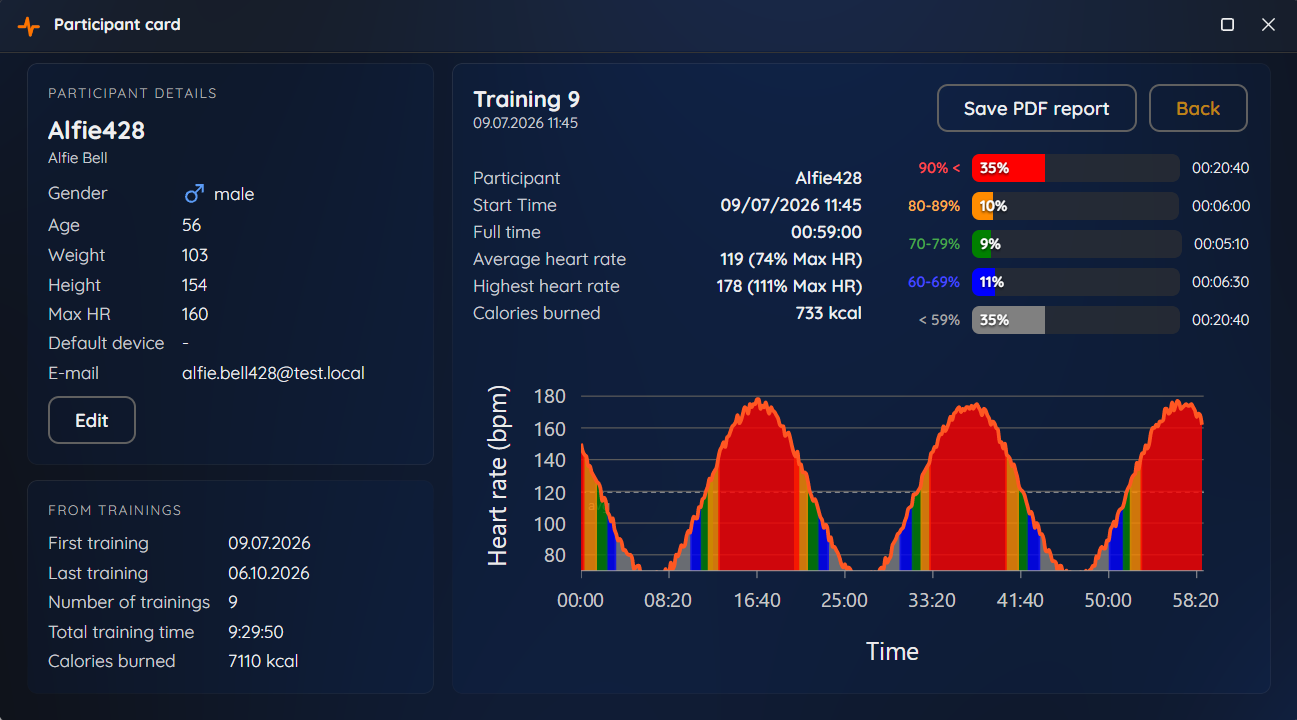
Right-click a training and choose View report to see this participant’s report of that training — the same figures, zone chart and heart-rate chart as in the training window. There you can click Save PDF report to export it, and Back to return to the list.
A participant who asks “how am I doing compared with last month?” can be answered in ten seconds: open the card, choose This month and then Previous month.