
The Live API shows a training on other screens: while a live screen is open, Pulse Monitor publishes the current state of the boxes on your local network. A TV, a tablet or any computer in the same network opens a link in its browser and sees the same coloured boxes as on the training screen — without a second antenna and without another copy of the program. Developers can read the same data from their own programs.
Your screen, on any screen in the building — the data never leaves your network.
The Live API is an optional feature, available with a licence that includes it, and it is off until you switch it on. The data goes directly from the computer running Pulse Monitor to the devices in your network, encrypted. Pulse Monitor (the manufacturer) receives none of it, and nothing is sent over the Internet. To extend your license to include Live API features, please contact your license vendor.
12.1 What you need#
- A licence that includes the Live API. Without it the Live API tab does not appear in the Settings window.
- The computer running Pulse Monitor and the devices that watch in the same network — wired or Wi-Fi, for example the club’s router. The devices need a browser; a smart TV, a tablet, a phone and any computer will do.
- Windows Firewall must allow Pulse Monitor to receive connections (Windows Firewall).
12.2 Switching it on#
Open Settings → Live API (Settings).
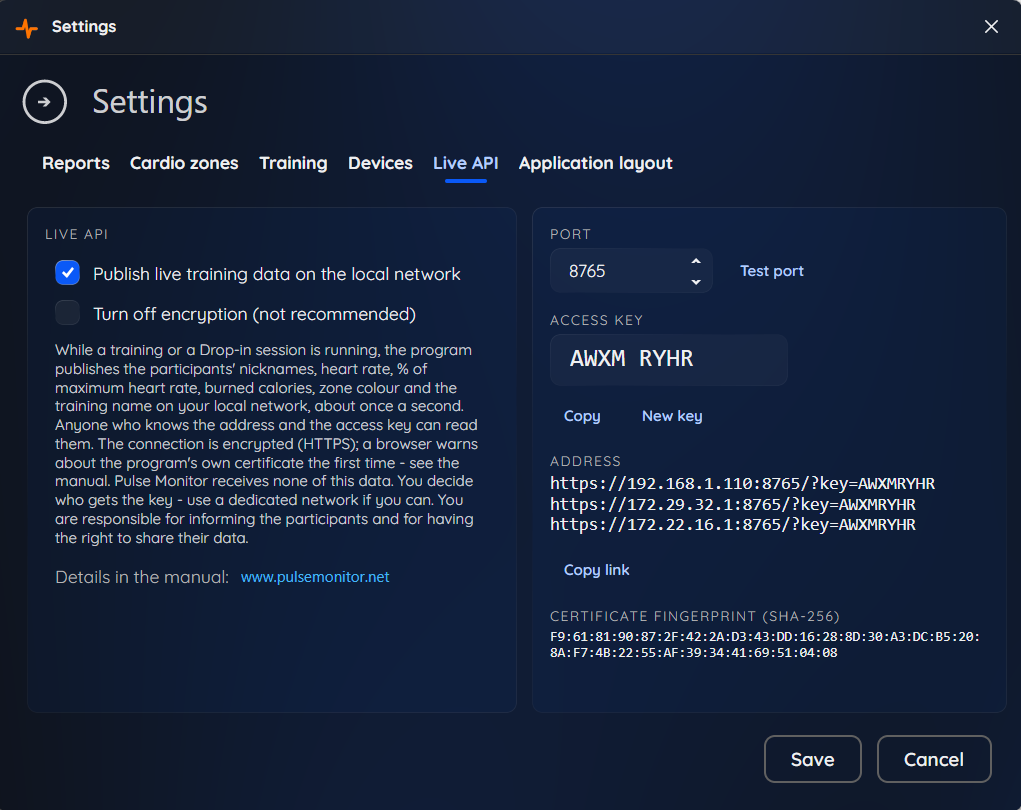
Tick Publish live training data on the local network. The program asks for a confirmation: During trainings, the participants’ heart rate data will be available on your local network to anyone who has the access key. Do you confirm that the participants have been informed and that you are entitled to share their data? Answer Yes only if that is so (Privacy and personal data).
Click Test port (Test port).
Click Save.
The connection is encrypted by default. The first time a browser opens the link it warns about the certificate — this is normal and is explained in Encryption and the certificate.
The tab shows everything you need to connect:
| Field | What it is |
|---|---|
| Port | The number of the door the program listens on. The default 8765 is fine; change it only when another program uses it (1024–65535). |
| Test port | Checks that the port is free and makes Windows Firewall ask for permission the first time (Test port). |
| Access key | Eight characters, for example K7MH 3RAW. Copy copies it, New key replaces it (The access key). |
| Address | The link to the live view — one line for each network address of this computer, with the key in it, for example https://192.168.1.15:8765/?key=K7MH3RAW. Copy link copies the first one. |
| Certificate fingerprint (SHA-256) | Identifies the program’s own certificate. A program of yours can compare it with what the server presents (Encryption and the certificate). Shown while the encryption is on. |
| Turn off encryption (not recommended) | One switch for the whole connection. Leave it unticked unless you have a good reason (Turning the encryption off). |
If the Address field shows several lines, use the one that begins like the addresses of your other devices (for example 192.168.1.…). A computer with virtual adapters, for example for virtual machines, lists more addresses.
The Live API works only while a live screen is open — a classic training (Classic training) or a Drop-in session (Drop-in sessions). When you close the screen, it stops. The changes you save in the settings apply from the next time you open a live screen.
12.3 The “Live:” indicator#
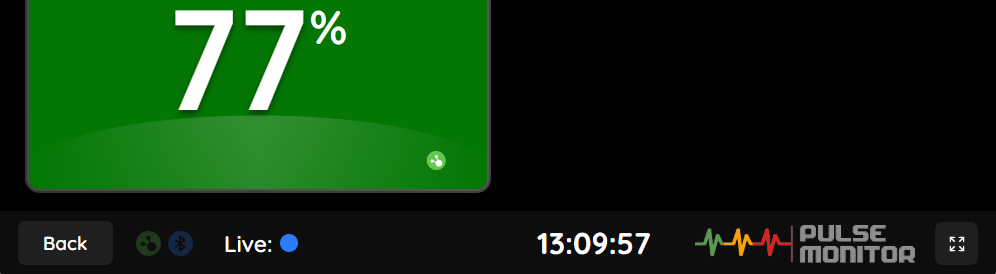
When the Live API is on, the bottom bar of the live screen shows Live: and a small coloured disc:
| Disc | Meaning |
|---|---|
| Grey | Starting: the program is opening the port. |
| Blue | It works, but no device is watching at the moment. |
| Green | At least one device is watching. |
| Orange | An error: the program could not open the port, most often because another program already uses it. Choose another port in the settings (Troubleshooting). |
| (nothing) | The Live API is off, or your licence does not include it. |
12.4 Watching in a browser#
Open the link from the Address field in the browser of any device in the same network, for example on a TV:
https://192.168.1.15:8765/?key=K7MH3RAWThe first time, the browser warns that the connection is not trusted — see Encryption and the certificate for what to click.
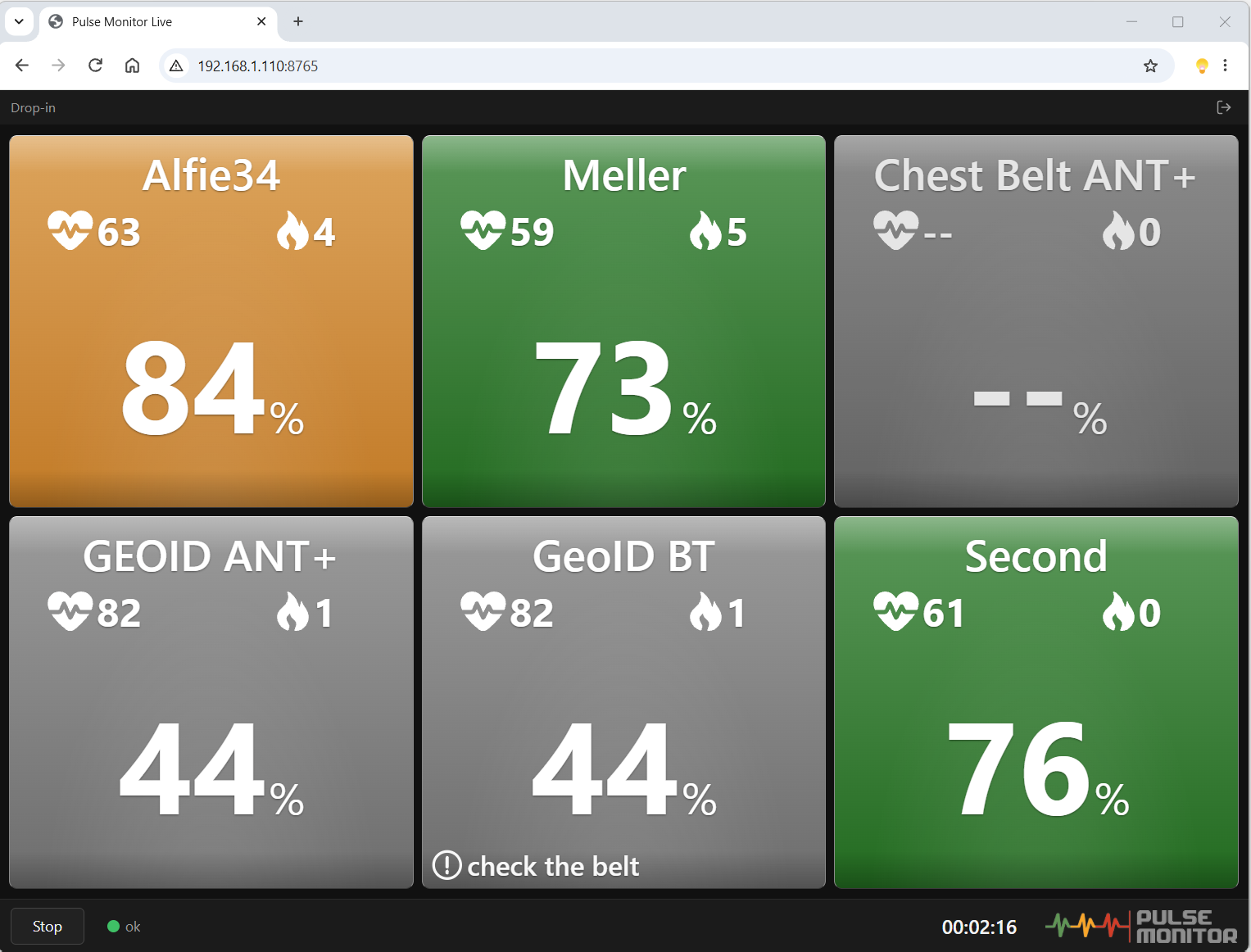
The page shows the participants as boxes — like the training screen: the nickname, the heart rate, the calories, the percentage of the maximum heart rate and the zone colour in the background. A grey box with dashes is a participant without a signal. A small check the belt at the bottom of a box is the same warning as on the training screen (Monitor sensor contact).
The arrangement of the information in the browser view is fixed (the default one): the heart rate on the left, the calories on the right and the percentage of the maximum heart rate in the middle. Changing what the boxes show and where in the program’s settings (Participant data presentation) does not change the browser view. The zone colours and the Show values above 100 % MaxHR option do apply to it, because they come from the program’s own data.
- The title bar shows the name of the training (Drop-in for a Drop-in session), the bottom bar the status, the time of the training and the Start / Stop button.
- The boxes fit the screen: the page chooses the number of columns and rows so that all participants are visible. Up to 42 participants are shown; on a very small screen the page scrolls.
- For a full screen use the browser’s full-screen key (usually F11).
- The status next to the button tells what is happening: ok (data arrives), waiting for training (the program works but there is nothing to show yet), no new data (the transmission stopped — the training screen was closed, or the sensors were lost), cannot connect (the page retries by itself), wrong key.
For a TV, save the whole link with ?key=… as a bookmark (or keep it as the start page of the TV’s browser). Opened that way the page connects at once, every time. A page opened without the key waits for the Start button after a reload.
The page remembers the address and the key in that browser. The icon in its top right corner (Forget this connection) removes them again. If you open https://192.168.1.15:8765/ without the key, the page asks for the address and the key and connects when you click Connect.
12.4.1 The web viewer#
Besides the built-in view you can use the web viewer hosted on our website. Open https://www.pulsemonitor.net/webclient/ in the browser of any device in the same network and enter the address and the access key shown in Settings → Live API. The page itself is loaded from pulsemonitor.net, but the participants’ data goes straight from your browser to the Pulse Monitor computer, not through our servers.
- Once for each browser, open the address of the computer (for example
https://192.168.1.15:8765/) and accept the certificate warning (Encryption and the certificate). The web viewer connects to the computer over the same encrypted connection, so the browser has to trust it first. - Open the web viewer, enter the address and the key, and click Connect.
- Your browser, for example Chrome, may ask for permission to access devices on your local network. Allow it — the viewer needs it to reach the computer.
12.5 The access key#
The access key is what allows a device to read the data: whoever has the key can watch your trainings as long as a live screen is open.
- It has eight characters from a set that avoids look-alikes (no 0 and O, no 1 and I and L), so it is easy to dictate and to type on a TV remote. Capital letters, small letters, spaces and dashes do not matter:
k7mh 3rawis the same key. - Copy copies the key as one string, without the space.
- New key makes a new key after a confirmation (Generate a new key? Anyone using the old key will stop receiving data.). Click Save to apply it. The devices that use the old key stop receiving data; give the new one to the others. Do this whenever the key may have got to the wrong person.
- A device that sends a wrong key five times is blocked for one minute. A person who mistyped the key once or twice is not affected.
The encryption protects the data on its way, but whoever has the key can read it. Give the key only to the people and the devices that need it, and use a separate network if you can (a router only for the displays) rather than a Wi-Fi shared with the guests of the club.
12.6 Encryption and the certificate#
Everything the program sends — the page, the data and the live stream — is encrypted (HTTPS and WSS), so that someone who only watches the traffic of the network cannot read the heart rates. This is switched on by default and you do not have to do anything for it.
The encryption needs a certificate. Pulse Monitor makes its own on your computer the first time it is needed. Nobody can issue an official certificate for the private address of a computer, so a browser does not know this one in advance and warns about it. The warning does not mean that something is wrong — it means that the certificate is not from a public authority. You accept it once for each browser:
| Browser | What to do |
|---|---|
| Chrome, Edge | Your connection is not private → click Advanced → Continue to … (unsafe) |
| Firefox | Warning: Potential Security Risk Ahead → Advanced… → Accept the Risk and Continue |
| Safari (iPad, iPhone, Mac) | This Connection Is Not Private → Show Details → visit this website → Visit Website |
The browser remembers the choice for that address, so the next time the page opens at once. A page that Pulse Monitor itself serves needs no more than this — its data connection works with the same choice.
When the network address of the computer changes (for example the router gave it a new one), the program makes a new certificate that includes the new address, and the browsers ask once more. To avoid it, give the computer a fixed address in the router (a DHCP reservation). The certificate is also renewed about every two years.
Smart TVs. The browser of some TVs does not offer to continue after the warning. Then show the page on a different device that is connected to the TV (a small PC or a tablet), or, if there is no other way and the network is yours alone, turn the encryption off (Turning the encryption off).
12.6.1 Turning the encryption off#
The Live API tab has one option, Turn off encryption (not recommended). When you tick it, the program asks Are you sure? Without encryption anyone who can see the traffic of the network can read the participants’ heart rate data. Turn it off only on a network that only you control, or when a device cannot accept the certificate. After you answer Yes and save, the page and the data are served as plain http:// and ws:// on the same port — the links in the Address field change to http://….
It is one switch for the whole connection: the page and the data are never encrypted separately. Untick the option to go back to the encrypted connection.
The web viewer on pulsemonitor.net works only with the encryption on. With the encryption off, use the built-in view: open the address of the computer in the browser (Watching in a browser).
Without the encryption, anybody in the same network who can see the traffic can read the heart rates of your participants. Use this only in a network that you alone control, and not with a Wi-Fi shared with guests.
12.7 What is published#
For each participant on the screen: the nickname (not the full name), the heart rate, the percentage of the maximum heart rate, the calories burned so far, the zone colour, and whether the sensor has a signal or the belt needs checking. For the training: its name and the time. Only the current values are published — there is no history and nothing is saved by the Live API.
Heart rate together with a nickname is health data. You decide who can see it and you are responsible for informing the participants (Privacy and personal data).
12.8 Windows Firewall#
The first time Pulse Monitor opens the port, Windows asks whether it may receive connections. In the window that appears:
- Tick Private networks (the club’s network at home or at work).
- Leave Public networks unticked, unless the club’s network is a public one and you know why.
- Click Allow access.
If you clicked Cancel, or the devices cannot connect, the permission is missing. To give it:
- Open Windows Security → Firewall & network protection → Allow an app through firewall.
- Click Change settings.
- Find Pulse Monitor in the list and tick Private. If it is not on the list, click Allow another app… and choose
PulseMonitor5.exefrom the folder where Pulse Monitor is installed. - Click OK.
Windows also treats every network as Private or Public. If the network is marked Public, change it in Settings → Network & internet: open the connection (Wi-Fi or Ethernet) and set the Network profile type to Private.
12.8.1 Test port#
Test port opens the port for a moment. It shows the Windows Firewall window if the program has not asked yet, and tells you whether the port is free or already used by another program. It cannot check whether other devices can reach the computer: a connection from the computer to itself never meets the firewall. The real test is to open the link on another device, for example on a phone in the same network.
12.9 Troubleshooting#
| What you see | What to check |
|---|---|
| The browser shows a warning about the certificate | Normal, once for each browser: accept it as described in Encryption and the certificate. |
| The page does not open at all, or says cannot connect | A live screen must be open on the computer (the Live API works only then). The device must be in the same network as the computer. Check the Windows Firewall (Windows Firewall). Some routers and the Wi-Fi for guests isolate devices from each other (client isolation) — use the main network or switch the isolation off. If the page is not served by Pulse Monitor itself, open the Pulse Monitor address in that browser once and accept the certificate. |
| The warning came back, or an old link stopped working | The computer got a new network address (and with it a new certificate), or you changed the port. Copy the link again from the Address field, and give the computer a fixed address in the router. |
| Wrong key | The key was changed or mistyped. Copy the link again from the Address field. |
| Too many attempts, or no answer for a minute | After five wrong keys the device is blocked for one minute. Wait, and use the right key. |
| Waiting for training | The program works but there is no data yet. It disappears within a moment after the live screen is open; if it stays, check that the training screen has started. |
| No new data | The live screen was closed, or the program lost its sensors. The last values stay on the page. |
| The indicator is orange | The program could not open the port. Another program uses it: choose a different Port in the settings and click Save. |
| The Live API tab is not in the Settings | Your licence does not include the Live API. To extend it, please contact your licence vendor. |
12.10 For developers#
The same data can be read by your own program. Here is the short version.
The most accurate and up-to-date documentation of the Live API, including the data format and example clients in several languages, is available at https://github.com/radeal-eu/pulselive.
| Request | Answer |
|---|---|
GET /live?key=… |
The latest snapshot as JSON; 503 until the first one exists. |
GET /ws?key=… (WebSocket) |
The latest snapshot at once, then every new one — about once a second. |
GET /?key=… |
The live view page described above. |
The addresses are https://… and wss://… (http://… and ws://… when the encryption is turned off). The certificate is self-signed, so a program should compare its SHA-256 fingerprint with the one shown in Settings → Live API instead of switching the check off. The key can also be sent in the header Authorization: Bearer …. A snapshot contains the complete state, so the last one is all that is needed:
{
  "v": 1,
  "seq": 1234,
  "sentAt": "2026-10-15T18:30:01Z",
  "training": { "name": "Spinning 18:00", "elapsedSec": 1834 },
  "participants": [
    {
      "nick": "Ania",
      "color": "#FF8800",
      "hr": 142,
      "pctMax": 78,
      "kcal": 312,
      "signal": true,
      "checkBelt": false
    }
  ]
}
sentAt changes with every snapshot; when it stops changing, nothing is being published. Up to 20 devices can be connected to the live stream (/ws) at the same time — the browser view uses it, so each open browser page counts as one device. Reading /live with ordinary requests does not count towards this limit.