
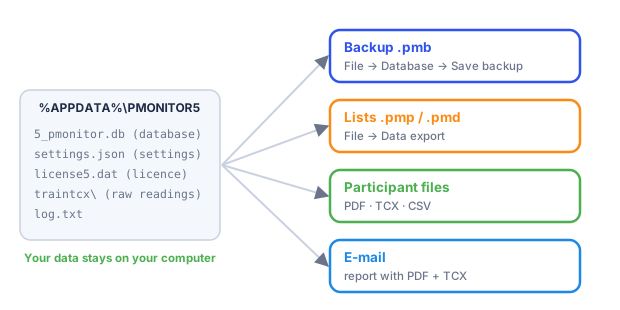
Everything Pulse Monitor knows — participants, straps, trainers, trainings and every recorded measurement — lives in one database file on your computer. This chapter shows how to protect it, move it and keep it tidy.
13.1 Backup and restore#
A backup protects you from a broken disk, a lost computer or an accidental deletion. We recommend making one regularly — for example, once a month and always before a major change (an update, a large import, cleaning the database).
13.1.1 Making a backup#
- Choose File → Database → Save backup…
- Pick a place and a name. The program suggests
pulsemonitor-<date>.pmb. - Click Save. A message tells you A copy of the data has been saved.
The backup file contains all data: participants, devices, trainers, trainings and their measurements. It is a compressed file and is usually small.
Save the backup on a different disk — an external drive or a cloud folder — not on the same disk as the program.
A backup contains the database. It does not contain your settings or your licence. Save the settings separately (Saving and loading the settings); the licence is registered on each computer (Licence and registration).
13.1.2 Restoring a backup#
- Choose File → Database → Import full database…
- The program warns you: Note: The import will overwrite all existing data in the program. Click OK only if you are sure.
- Select the
.pmbfile. - After loading, the program says The data file loaded. Please restart the application. Close Pulse Monitor and start it again.
Restoring replaces everything you have now with the content of the backup. Data entered after the backup was made is gone. If you are not sure, make a fresh backup of the current state first.
13.1.3 Moving to another computer#
- On the old computer: File → Database → Save backup…, and File → Settings file → Save settings…
- Install Pulse Monitor on the new computer and start it once.
- File → Database → Import full database…, select the backup, restart the program.
- File → Settings file → Load settings…, select the settings file, restart the program.
- Release the licence on the old computer and register it on the new one (Releasing and moving a licence).
13.2 Saving and loading the settings#
The club’s settings can be saved to a file and loaded on another computer, or after a reinstallation.
Saving. Choose File → Settings file → Save settings… and pick a place. The file has the extension .pms.
The file contains: the club name and address and the logo, the appearance (theme, accent colour, participant panel, language), units, the cardio zones, what the participant box shows, the related switches, and the mail account settings. It does not contain the antenna and Bluetooth settings or the licence.
The file contains the e-mail password as plain text. The program reminds you after saving. Keep the file in a safe place and do not send it around.
Loading. Choose File → Settings file → Load settings… and select a .pms file. The program first checks the whole file. A file that is not a Pulse Monitor settings file, comes from a newer version of the program, or is damaged, is refused with a message and nothing is changed. If the file is fine, the program asks Replace the current settings with the ones from this file? Antenna settings are not changed. After you confirm, the settings are replaced — all or nothing — and the program asks you to restart the application.
13.3 Exporting and importing the participants and straps#
If you only want to share your participants or your straps — for example between two computers of one club — use File → Data export and File → Data import instead. They are described in Exporting and importing lists.
13.4 Cleaning up old data#
Every training stores a heart-rate record every ten seconds for every participant. Over the years this adds up. The clean-up tools let you reclaim space.
Open File → Database → Database operations.
13.4.1 Delete training data#
Under Delete training data choose Older than a year or Older than a month and click Remove. After you confirm (Are you sure you want to delete this data?), the program deletes the detailed heart rate records of every finished training older than the chosen period and reports Deleted records: N.
Deletes only the detailed heart rate records from this period. Keeps the general training statistics of the participants.
| Kept | Removed |
|---|---|
| The training itself and its place in the list | The ten-second heart-rate records |
| The participants and their figures: average heart rate, highest heart rate, calories, time | The heart-rate chart and the time in zones of that training |
| The participant card statistics | PDF reports and TCX files can no longer be created for that training |
The database file is also compacted, so the space is released at once.
This does not delete the raw readings files (traintcx\<number>.csv) used by Save full HR data. If you want to free this space too, delete the files of old trainings from that folder.
13.4.2 Empty the database#
Under Empty the database, Delete all data from the database completely empties the program’s database — participants, devices, trainers and all trainings. After you confirm (Do you want to delete all participant, device, and workout data from the program?), the program says Database cleared. Restart the application.
There is no way back. Make a backup first. Your settings and your licence are not deleted by this operation.
13.5 Privacy and personal data#
- All data stays on your computer. Participants’ names, e-mail addresses, body data and heart-rate records are stored only in the local database. Pulse Monitor does not send them to any server.
- When you send a report by e-mail, you yourself forward that participant’s data to the participant, through the mail account you configured.
- The program contacts the Internet only to check for updates and, if it is registered, to confirm the licence. Neither of these transmits participant data.
- If you switch on the optional Live API, the current values of the participants on the live screen (nickname, heart rate, calories) are published on your local network, encrypted, to the devices that have the access key. They are still not sent to us or to any server on the Internet; you decide who gets the key (Live API and the browser live view).
- You are the data controller for the personal data of your participants. In many countries (for example, in the European Union) you must inform participants what you store and why, and delete their data when they ask. The tools in this chapter help with that.