
Pulse Monitor is a Windows application that shows the heart rate of everyone in a group class live, on one screen, and records it so that each participant can get a report afterwards. It is built for fitness clubs, indoor-cycling studios, gyms, schools and any place where a trainer wants to see at a glance who is working too hard, who is not working hard enough, and who needs a break.
1.1 What Pulse Monitor does#
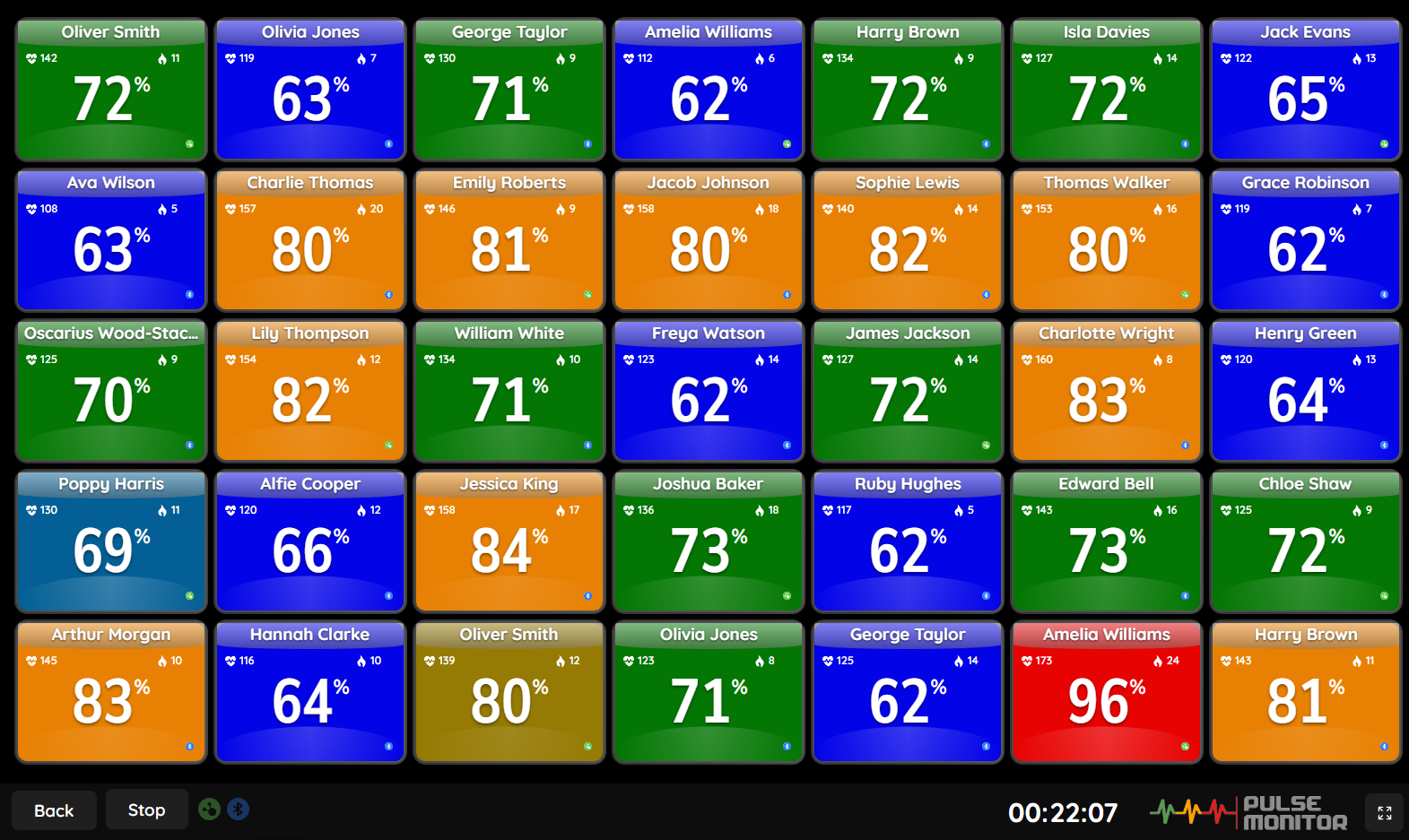
- Shows each participant’s heart rate in real time. Every participant gets a coloured box with a nickname, the current heart rate, the percentage of their personal maximum and the calories burned. The colour tells the training zone at a glance.
- Supports up to 42 participants at once in a single class.
- Works with two kinds of chest straps: ANT+ and Bluetooth (see Two kinds of straps).
- Records the whole class and builds a report for every participant: average and highest heart rate, calories, time spent in each zone and a heart-rate chart.
- Sends the reports as PDF e-mails or saves them as PDF, TCX or CSV files.
- Keeps a history of every participant: a participant card with statistics over the last trainings, weeks and months.
- Runs without a trainer in Drop-in mode, where people simply put on a strap and appear on the screen.
1.2 What’s new in version 5#
If you used an earlier version of Pulse Monitor, this is what changed:
| New in 5 | Where to read about it |
|---|---|
| Bluetooth straps now work next to ANT+ straps, in the same training | Straps and devices |
| A completely new, modern look with light and dark themes and accent colours | Application layout |
| Participant card with a statistics chart and a list of all past trainings | Participant card |
| Drop-in sessions (formerly “Open workout”) — walk-in participants on a live screen | Drop-in sessions |
| A default device for every participant — the strap is assigned automatically | Participants |
| Range test for any strap | Range test |
| Trainers list with quick selection when creating a training | Trainers |
Save and load a participants list (.pmc) for recurring classes |
Choosing participants |
| A tidier participant box with technology icons and a “check the belt” row | Reading the participant box |
| One backup file for the whole database, plus clean-up tools for old data | Managing your data |
1.3 What you need#
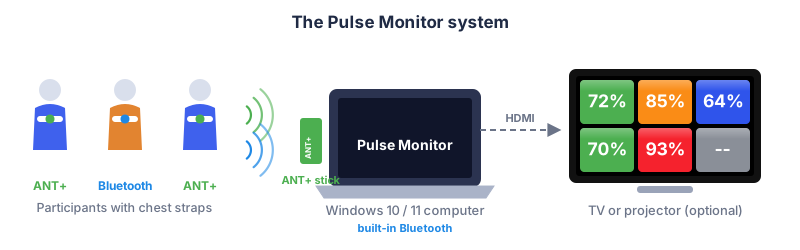
- A Windows computer — Windows 10 (version 2004 or newer) or Windows 11. A laptop or a mini PC connected to a TV or projector works very well.
- Heart-rate chest straps (or arm bands, or HR watches that broadcast heart rate) worn by the participants. Either ANT+ straps, Bluetooth straps, or a mix of both.
- A receiver:
- for ANT+ straps — a USB ANT+ stick plugged into the computer (a second stick is supported for a larger range);
- for Bluetooth straps — the computer’s own Bluetooth adapter (Bluetooth 4.0 / Low Energy or newer). Most modern laptops have one; for a desktop PC you can add a small USB Bluetooth dongle.
- A display for the participants (optional but recommended): a TV or projector connected by HDMI, which shows the live training screen to the whole room.
When you buy straps, check the box: look for the ANT+ logo or for Bluetooth with Heart Rate support. Many straps do both. A list of recommended devices is on our website, https://www.pulsemonitor.net.
1.4 Two kinds of straps: ANT+ and Bluetooth#
Pulse Monitor speaks to both technologies at the same time. In the program they are simply called ANT+ and Bluetooth; there is nothing more to learn about the technology itself — but a few practical differences are worth knowing before you buy straps.
| ANT+ (recommended) | Bluetooth | |
|---|---|---|
| Receiver | USB ANT+ stick | Built-in or USB Bluetooth adapter |
| Number of straps at once | Up to the licence limit (42), one stick handles all of them | Limited by the Bluetooth adapter — usually 5 to 7 (default limit in Pulse Monitor: 7) |
| Range | Typically around 10 m in a clear room ¹ | Depends on the strap and the adapter ² |
| One strap, many receivers | A strap can be heard by many receivers at once (your stick, a watch, a bike computer…) | A strap normally accepts only one connection at a time — turn Bluetooth off on the participant’s phone or watch |
| Best for | Groups of 10 or more, studios, permanent installations | Small groups, personal training, trying the system without buying a stick |
¹ ANT+ — the manufacturers of ANT+ chips state that ANT radios are designed for typical operating environments up to 30 m; with heart-rate straps worn on the body, a range of about 10 m is the realistic planning figure, and less with many people in the way. ² Bluetooth — there is no single figure: the range depends on the transmit power, the receiver sensitivity and the environment. For orientation: manufacturers of Bluetooth heart-rate straps state ranges of 10 m, often 30 m and even 100 m (these are best-case figures in the open). Details, and how to measure it, are in Range of the straps.
Large groups: use ANT+. A Bluetooth adapter can reliably keep only a handful of connections open. Pulse Monitor lets you set that limit and will not let you add more Bluetooth straps to a training than the limit allows. With ANT+ there is no such restriction.
Most chest straps and arm bands support both technologies, but during a training a strap uses only one of them. Pair such a strap as ANT+ (Finding straps with the scanner).
You may mix both kinds in a single training. Each strap is simply registered as ANT+ or Bluetooth when you add it (see Straps and devices).
1.5 Quick start in ten minutes#

- Install Pulse Monitor and plug in the ANT+ stick (Installation and updates).
- Set up the club: name, address, logo and cardio zones in Settings (Settings).
- Add your straps in Tools → Devices: scan, click a detected strap, give it a name (Straps and devices).
- Add your participants in Tools → Participants (Participants).
- Click Classic on the main screen, name the class, pick participants and their straps (Classic training).
- Click Go to practice, then the big Play button. The class is running.
- When it is over: Finish and summary. Look at the results and send the reports (Reports).
No participants to register? Click Drop-in instead — straps appear on the screen the moment their owners put them on (Drop-in sessions).
1.6 About this manual#
Names of buttons, menus and windows are written in bold, exactly as they appear in the English version of the program. A path such as Tools → Settings means: open the Tools menu and choose Settings.
Tips are shortcuts and good habits.
Notes explain how something works.
Warnings point out things that can cause data loss or a poor measurement.
Screenshots in this manual use the default blue accent. Your screen may look slightly different if you use another theme (light or dark), accent colour or language.